

All Tags
The All Tags page lets you create and manage reusable hashtags for your AutoPubliX account. Use tags to keep captions consistent and speed up post creation.
All tags created here will automatically appear in the Create and Edit Post → Add Hashtag section, allowing you to quickly select and apply relevant hashtags when publishing content.
To open this page, navigate to:
Navigation: Dashboard → Posts → TegsWhat You Can Do on This Page
On this page, you can create and maintain a centralized list of hashtags that will be used throughout the system. Instead of manually typing hashtags every time a post is created, users can simply select them from the predefined list, ensuring faster content creation and consistent tagging.
This page also allows you to update or remove hashtags whenever necessary. By managing tags from one location, the system ensures that all connected social media posts maintain a clean, organized, and standardized hashtag structure.
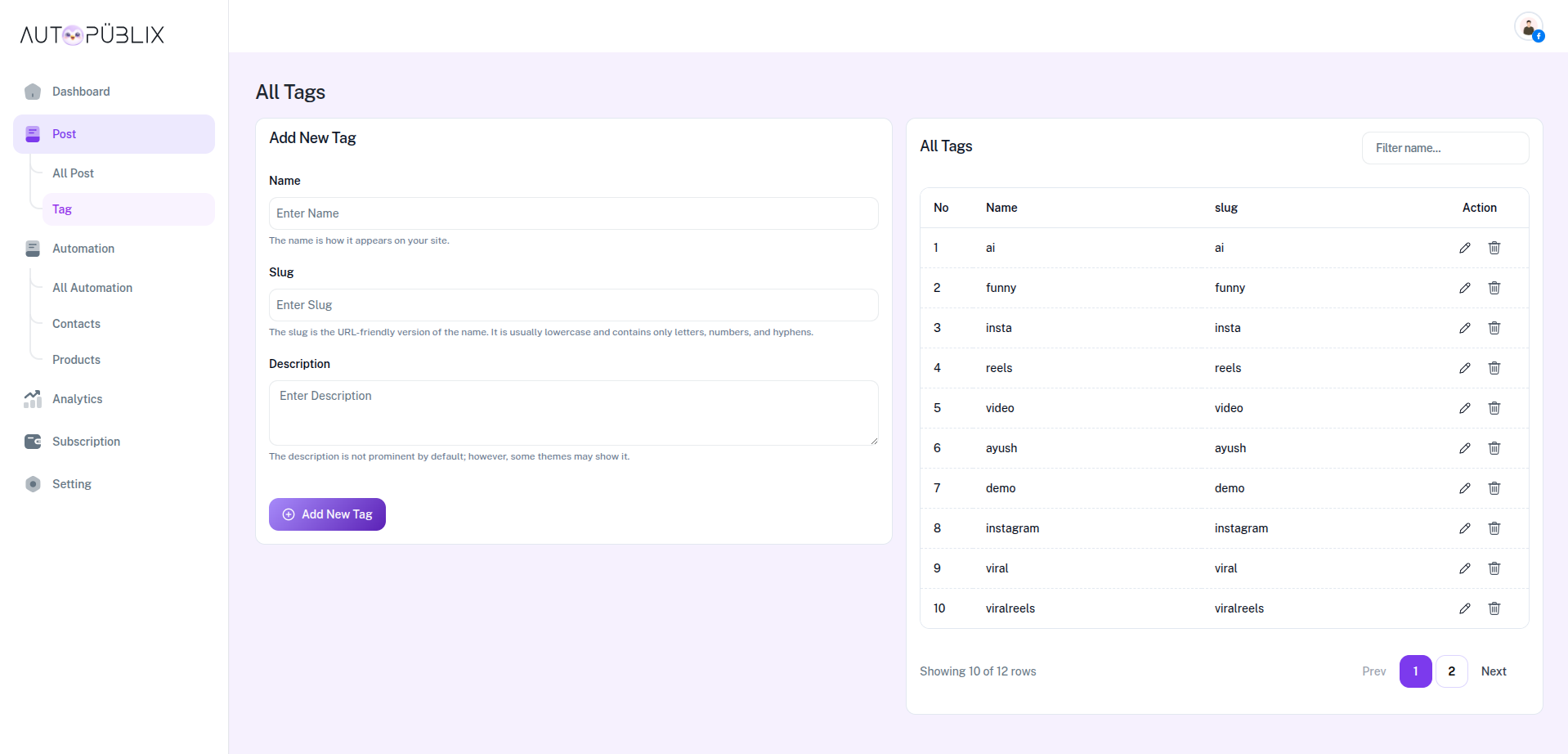
How it works
All tags created on this page are stored in the our system. When opening the Create and Edit Post page, the system fetches all available tags and displays them in the Add Hashtag section. you can then select one or multiple tags to attach to the post before publishing.
All tags created on this page are securely stored in our system.
When a user opens the Create Post page:
Users can:
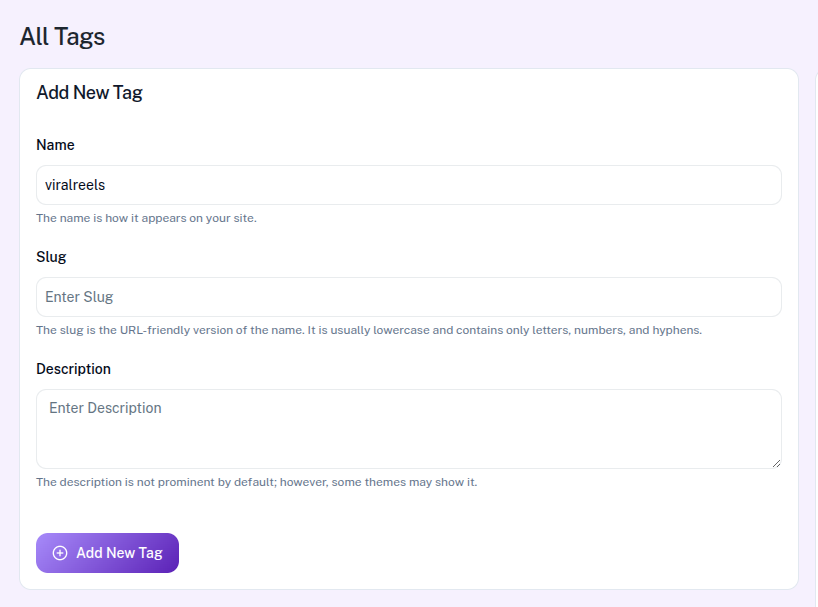
Add New Tag
You can create new hashtags using the Add New Tag form.
- Name : The display name of the tag that users will see when selecting hashtags.
- Slug : A URL-friendly version of the tag name. It usually contains lowercase letters, numbers, and hyphens.
- Description : An optional description that may be used for archive or informational purposes.
When you have completed the form, click the Add New Tag button. It becomes immediately available in the Create Post → Add Hashtag section.
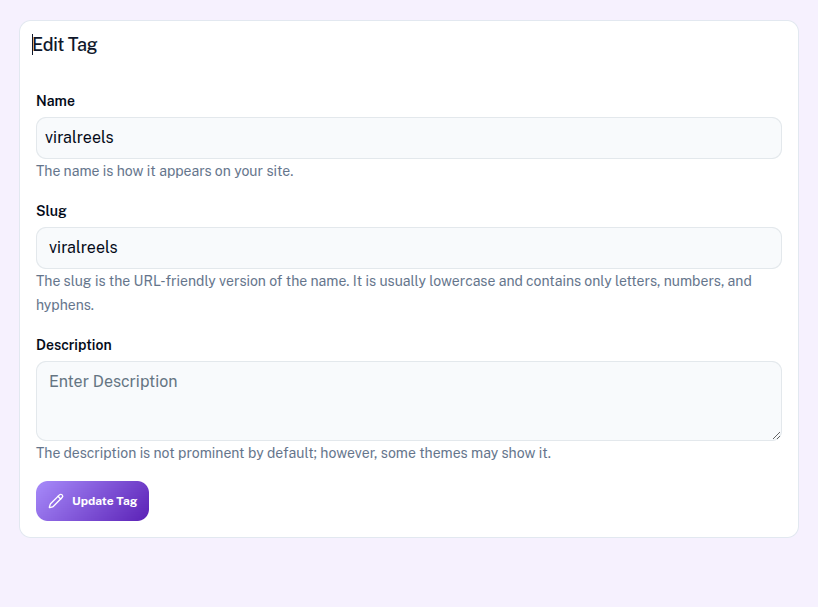
Edit Tag
You can modify existing tag information at any time.
Editable fields include:
- Name
- Slug
- Description
After making changes, click the Update Tag button. It will be immediately reflected in the Create Post → Add Hashtag section.
Delete Tag
Click the“Delete icon” to remove a tag. You will be asked to confirm before deletion.