

Manage Your Generic Templates
Use this builder to create or edit a generic template card for automation DMs. In the product the screens are titled Create New Generic Template and Edit Generic Template — both use the same fields.
To open this page, navigate to:
Navigation: Dashboard → Automation → Generic Templates → Create New Generic Template (or Edit from the list)Free plans cannot access this catalog. Selection limits when using templates in automations are documented on All Generic Templates.
Template Details
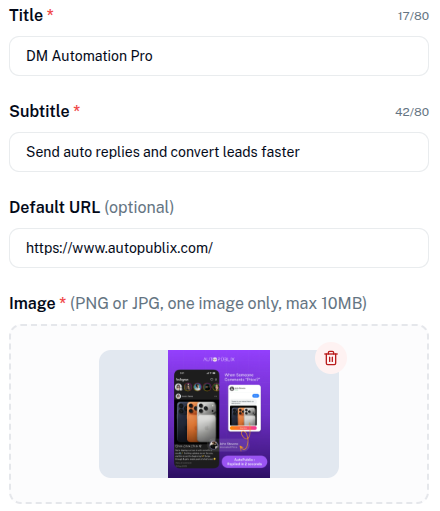
- Title (required) — up to 80 characters; main heading on the card
- Subtitle (required) — up to 80 characters; short description
- URL (required) — labeled URL on the form; must start with
https://. Appears as Default URL in the list; used as the card's default link - Image (required) — pick one PNG or JPEG from your Media Library. Click the image area to open the picker; hover for Change image or remove the selection. There is no drag-and-drop upload on this form.
Actions
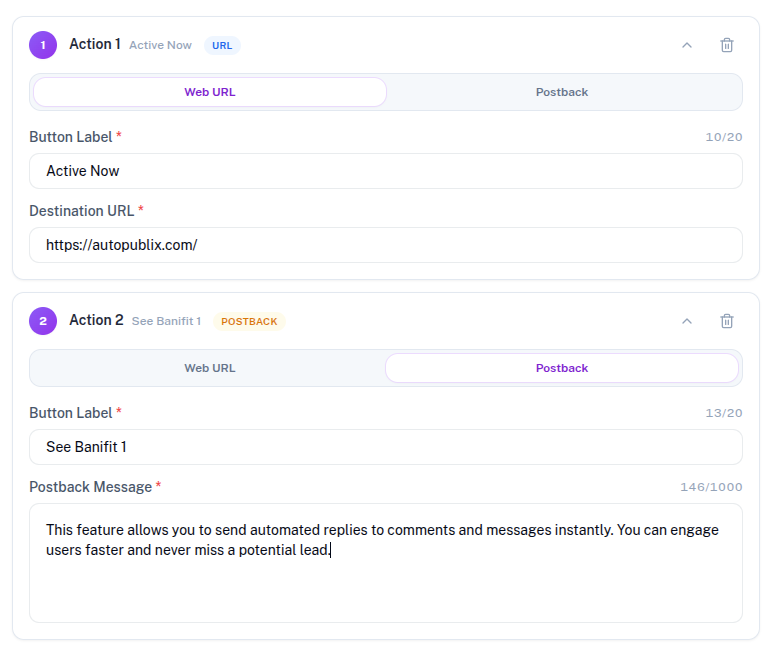
Add between 1 and 3 buttons with Add action (n/3). Remove with Remove action.
- Web URL — Button Label (up to 20 characters) and Destination URL (HTTPS)
- Postback — Button Label and Postback Message (up to 1000 characters) sent when the user taps the button
Save as Draft or Publish
- Save as draft — save for later; not selectable in automations
- Publish now — status becomes published and available in Send Generic Templates flows
On edit, you can also see Linked Automations when the template is already used. There is no separate public AutoPubliX page for a template — the URL field is an external HTTPS link on the card.