

Instagram Inbox
Instagram Inbox is your workspace for managing Instagram direct messages inside AutoPubliX. Use it to triage unread chats, reply when a human is needed, leave internal notes, set reminders, and pause automation for a conversation — without leaving the dashboard.
Automations still send replies for triggers you configure. Inbox is the layer for reading threads and handling conversations yourself.
To open this page, navigate to:
Navigation: Dashboard → InboxPlan Access
- Free — Instagram Inbox is locked. Upgrade to unlock the feature.
- Creator and Growth — full Instagram Inbox access (activate, read, reply, notes, reminders, labels, and human takeover)
Connect and Activate
Before Inbox can sync DMs:
- Connect an Instagram account with the messaging permissions AutoPubliX requests
- Open Inbox and activate it for that account when prompted
- If you have multiple Instagram accounts, use the account selector next to the Inbox title to switch which account's DMs you are viewing
Workspace Overview
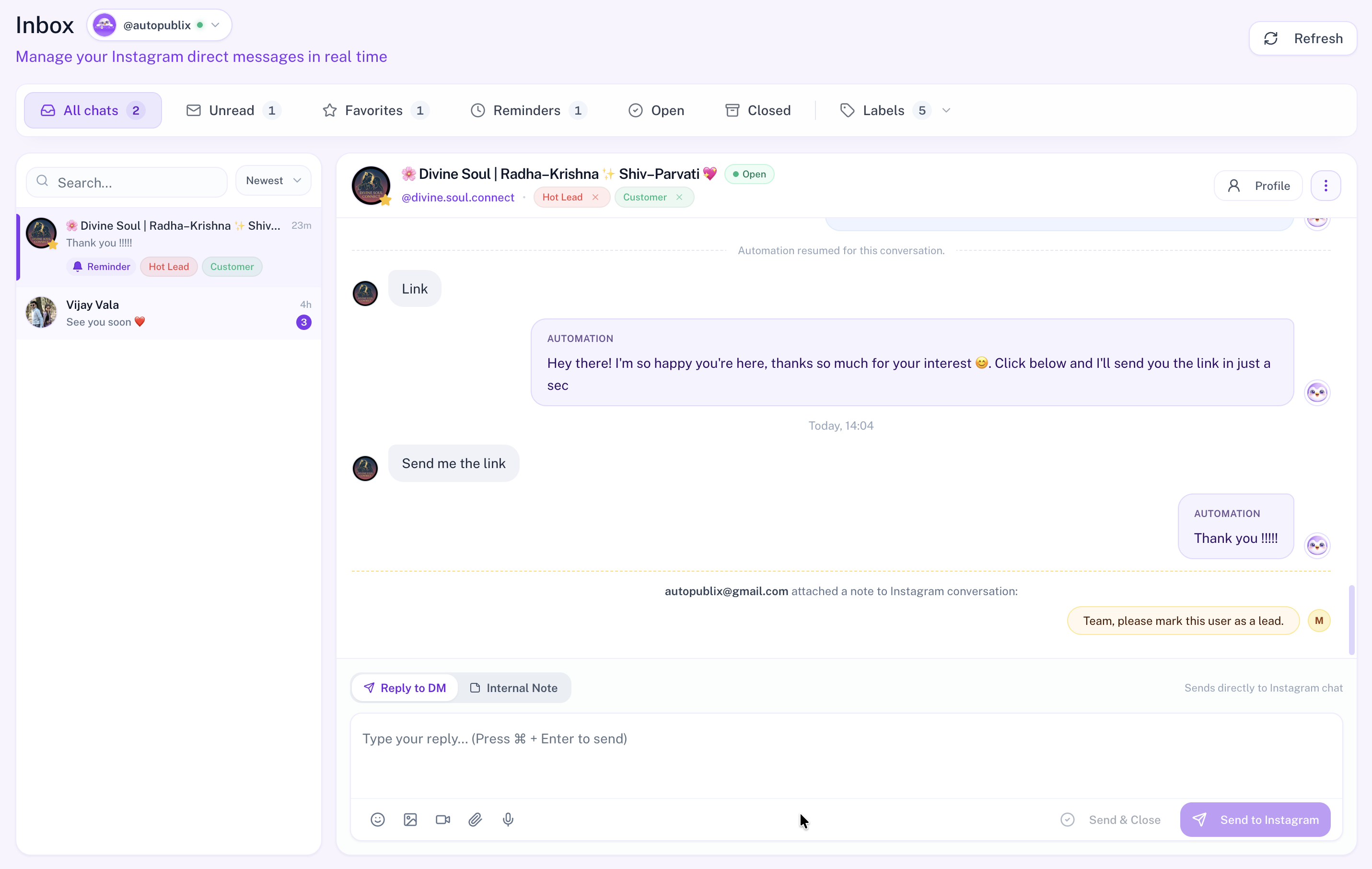
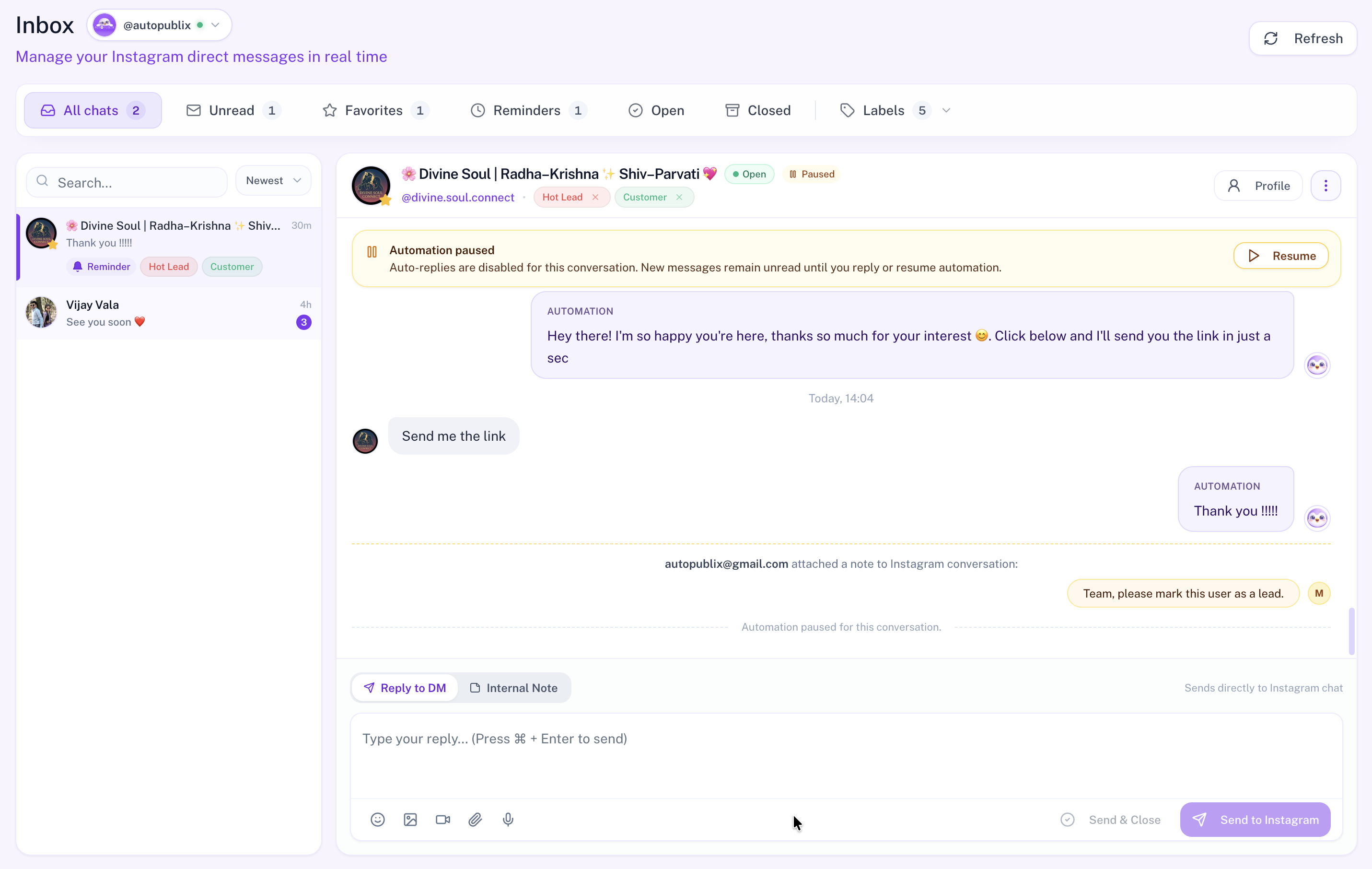
The Inbox screen has three main areas:
- Filter tabs — All chats, Unread, Favorites, Reminders, Open, Closed, and Labels
- Conversation list — search, sort (Newest / Oldest), previews, and unread badges
- Chat view — full thread, profile actions, and the reply / note composer
Filters and Labels
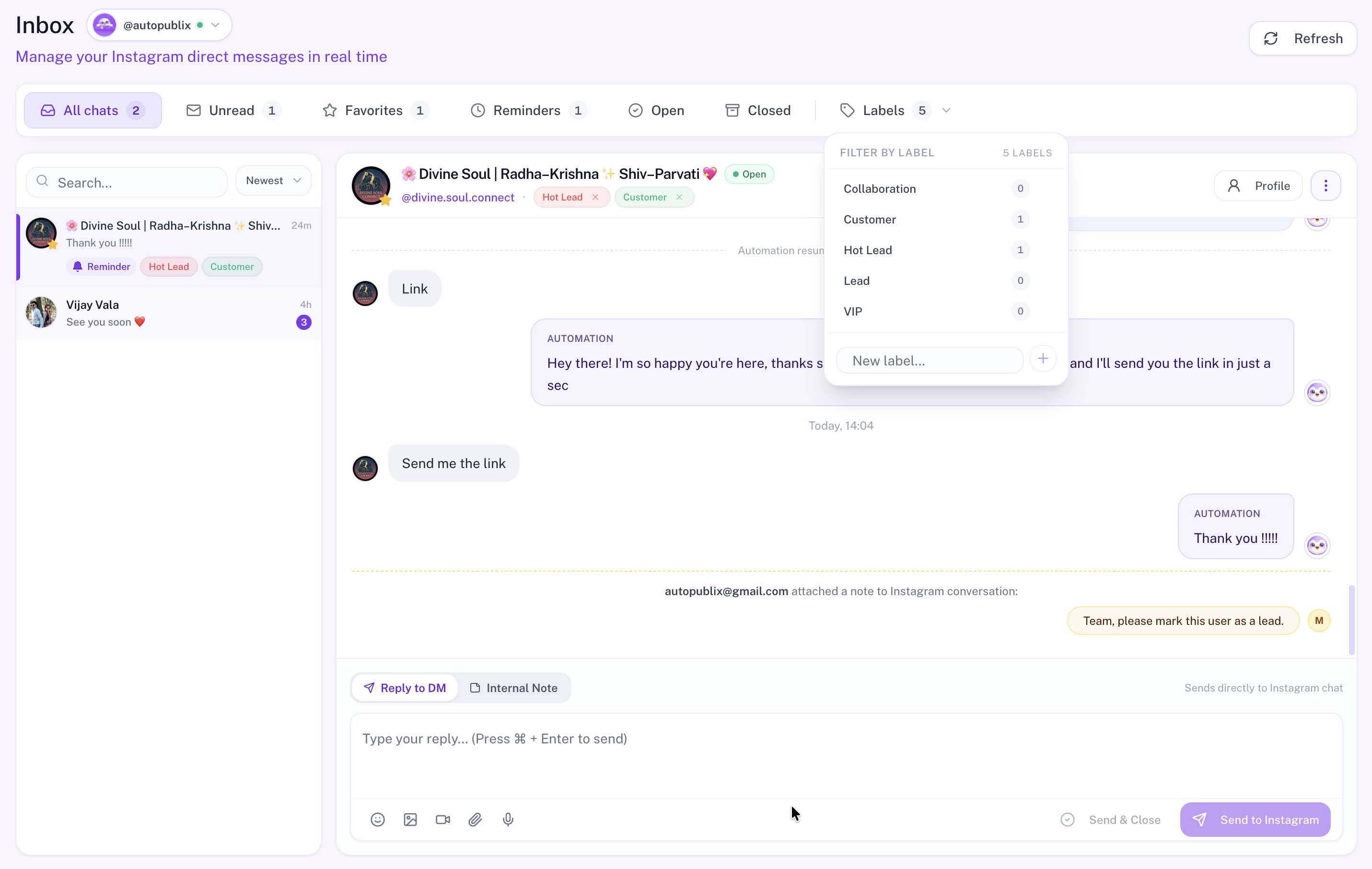
Filter tabs help you triage high volume DMs:
- All chats — every conversation for the selected Instagram account
- Unread — conversations with unread customer messages (count updates when you open a thread)
- Favorites — chats you starred
- Reminders — chats with an active follow-up reminder
- Open / Closed — conversation status
- Labels — create custom labels, filter by a label, or delete labels you no longer need
Conversation List
Each row shows the customer name or profile, last message preview, relative time, and an unread badge when messages are waiting. Use:
- Search… — find chats by name or message text
- Newest / Oldest — sort by last activity
Click a conversation to open it. Opening a thread marks it as read so the Unread count stays accurate.
Reading and Replying
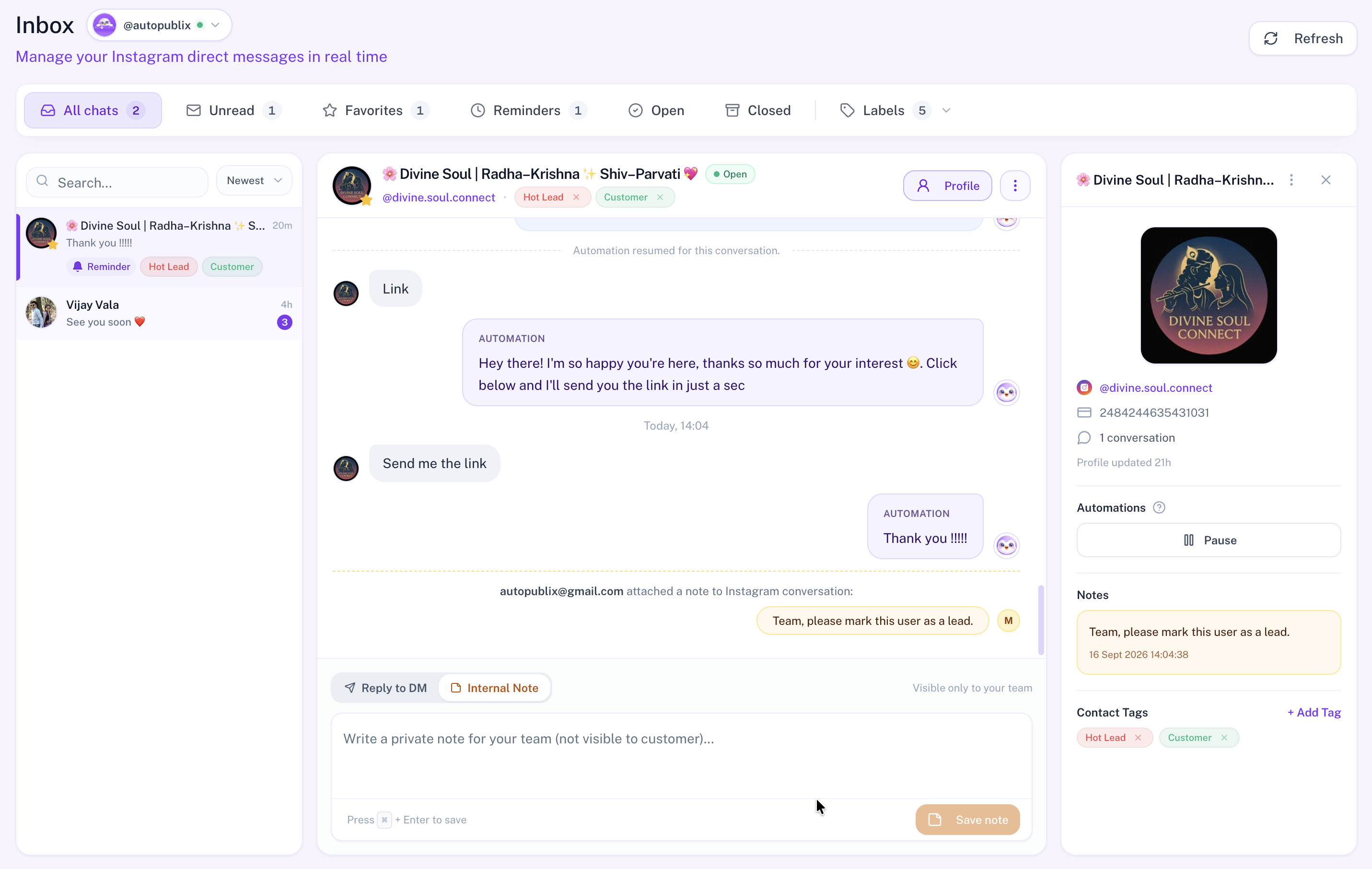
In the chat view you can:
- Read the full thread (customer messages, automation replies, media, and notes)
- Switch the composer between Reply to DM and Internal Note
- Send text and supported media with Send to Instagram, or use Send & Close to reply and mark the conversation closed
- Open Profile for customer details and related actions
Message and Media Types
In Reply to DM mode, the composer toolbar supports text plus attachments from your Media Library. You can combine text with one attached media item, then send.
What you can send
- Text — type your reply in the composer (⌘ / Ctrl + Enter to send)
- Emoji — use the emoji picker in the toolbar to insert emoji into your text
- Image — attach an image from the Media Library (up to 8 MB)
- Video — attach a video from the Media Library (up to 25 MB for Instagram Messaging)
- Audio — attach Instagram-compatible audio (AAC, M4A, WAV, or MP4 audio). OGG and MP3 are not accepted for Inbox replies. Up to 25 MB
- File (PDF) — attach a PDF from the Media Library (up to 25 MB)
What you see in the thread
- Customer messages — text and media they sent (left side)
- Your replies — text and media you sent from Inbox
- Automation replies — labeled AUTOMATION
- Internal notes — yellow note rows for your team only (not sent to Instagram)
- System lines such as automation paused / resumed for that conversation
Reminders, Favorites, and Status
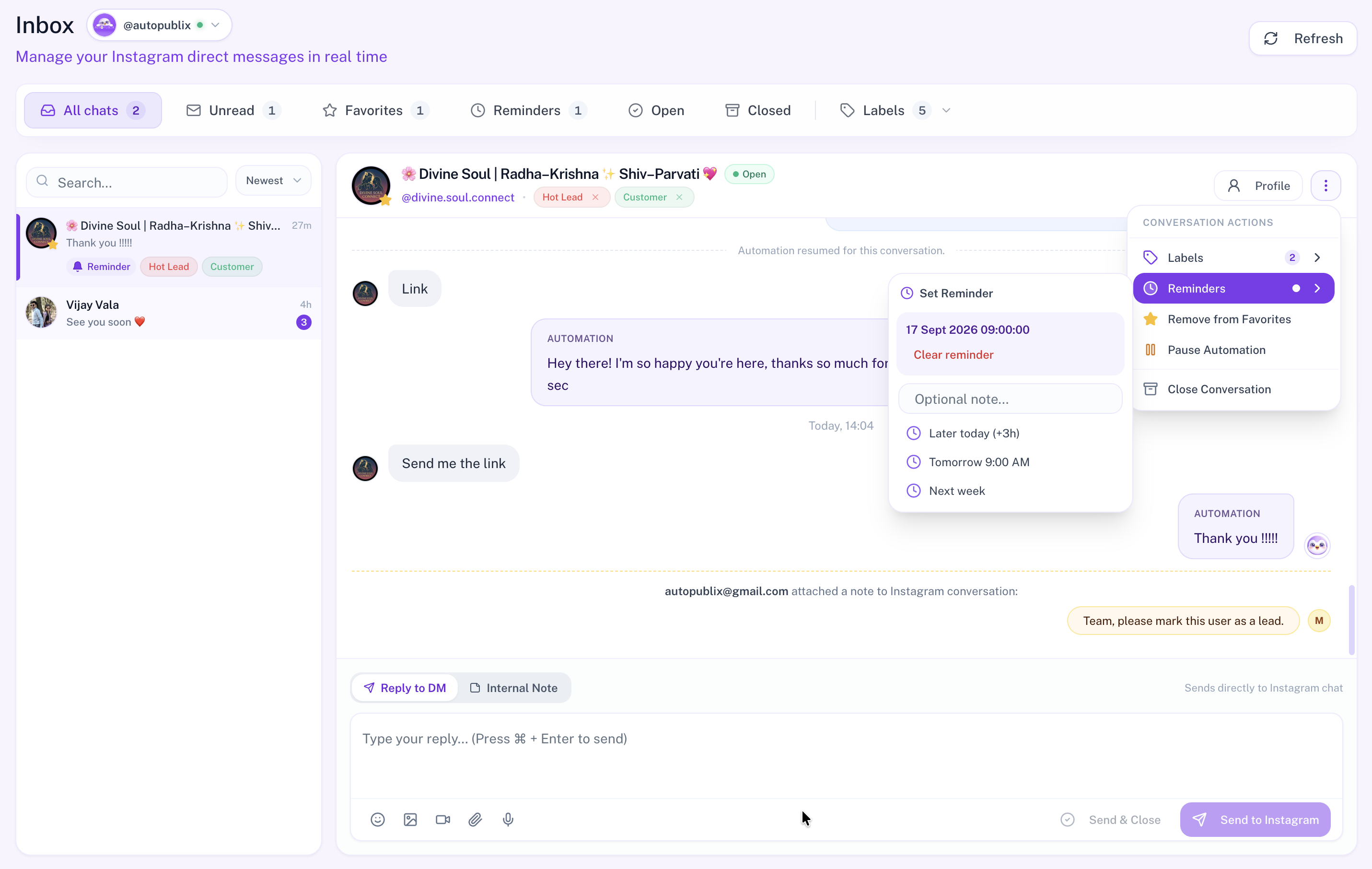
- Favorite — star VIP buyers or important chats so they appear under Favorites (use Add to Favorites / Remove from Favorites in Conversation Actions)
- Reminder — from Conversation Actions → Reminders, pick a preset (Later today, Tomorrow 9:00 AM, Next week) or clear an existing reminder; optional note supported. Active reminders show under the Reminders filter
- Open / Closed — keep work-in-progress chats Open; use Close Conversation when the issue is resolved
- Labels — tag chats by campaign, order, or support topic for faster filtering
Automation Pause and Human Takeover
When you need to help someone personally, pause automation for that conversation so they are not double-messaged. From Conversation Actions choose Pause Automation, or reply from Inbox (human takeover can pause auto-replies for the thread).
- A Paused badge appears in the chat header
- A banner explains that auto-replies are disabled and new messages may stay unread until you reply or resume
- Click Resume on the banner (or resume from actions) when you want automation to run again
Related Docs
- DM Automations — keyword replies on Instagram and Facebook
- Welcome DM for New Conversations
- Ice Breakers
- All Contacts — emails and phones collected by automations (not the live DM list)
- Subscription