

All Posts
The All Posts page is where you manage every social post in your AutoPubliX account. View drafts, scheduled, published, and failed posts, then use status tabs, Filter By, and Search by Content to find what you need.
To open this page, navigate to:
Navigation: Dashboard → Post → All PostsWhat You Can Do on This Page
Review posts across Instagram, Facebook, X (Twitter), and LinkedIn. Open details, edit, delete, or start a new post with Create New Post. Each row shows content preview, platform, status, date, and actions.
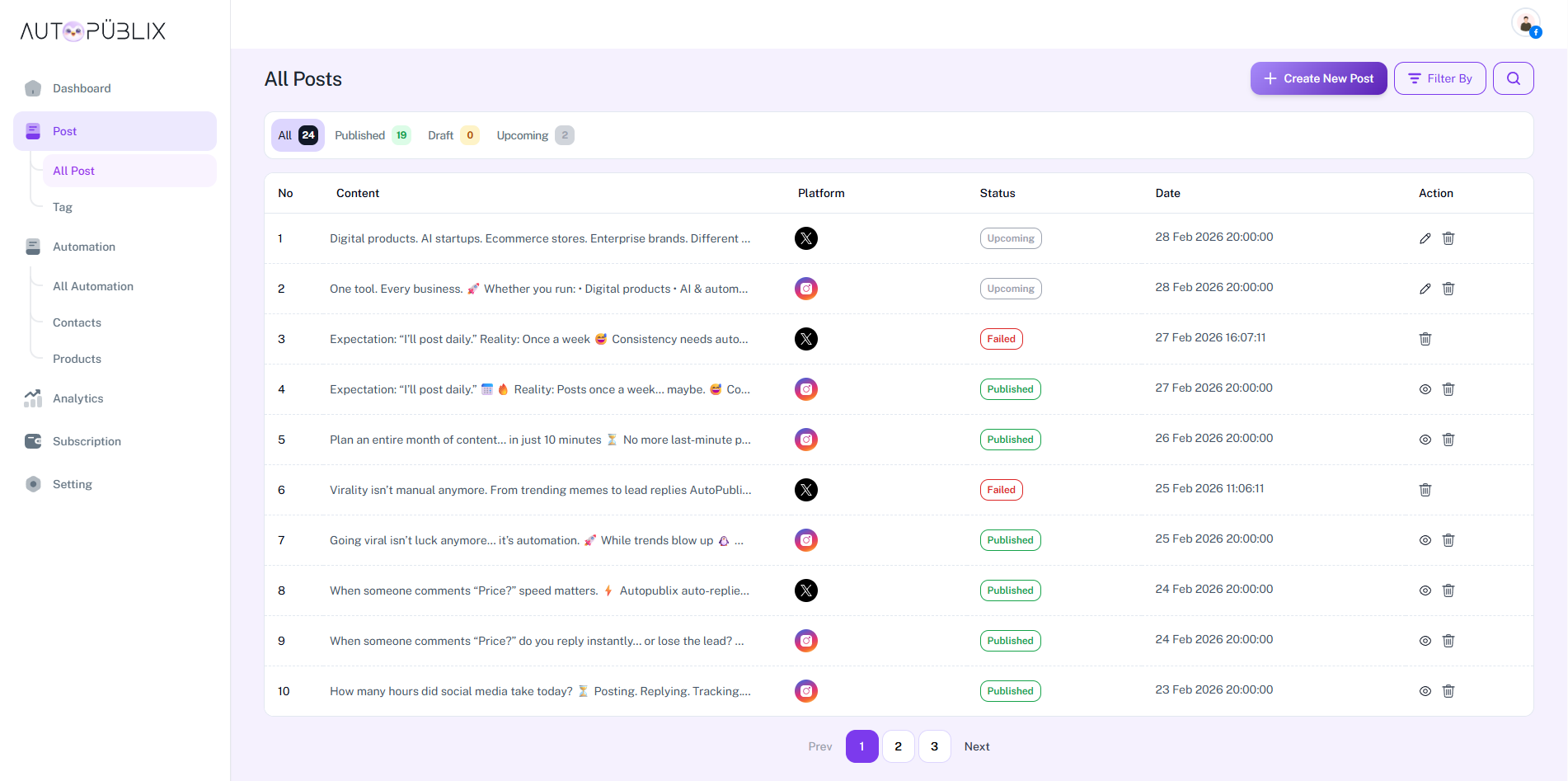
Status Tabs
Sticky tabs filter by status (each shows a count):
- All
- Published — includes posts still processing
- Draft
- Upcoming — scheduled posts
- Failed
Filter By
Open Filter By to refine the list. A red indicator appears when platform, date, or sort options are active. Filters combine with the status tab and search (AND).
- All Platform — All Platform, Instagram, X(Twitter), LinkedIn, Facebook
- Select Date — calendar day based on post created date
- Order — ASC or DESC
- Order By — Title, Date, or Status
Use Clear All in the panel to reset platform, date, order, order by, and search — it does not reset the status tab. Closing the panel keeps your choices. Default sort is newest first when no Order is set.

Search by Content
Open search and type in Search by Content to match post text (including AI-generated captions). Search works with status tabs and Filter By. Opening search closes the Filter By panel (and the other way around); your criteria stay applied.

Create New Posts
Click Create New Post to open the composer — posts, reels, stories, products, and publish options (Draft / Schedule / Publish Now). See Manage Your Posts for the create flow.
View Post Details
Use the eye icon in Actions to open full post details, platform info, and related analytics.
Delete Posts
Use the delete icon and confirm. Empty list shows No posts Found.