

Post Comment Automations
The Post Comment category runs when someone comments on your feed posts. Open All Automations → New Automation, choose Post Comment, then pick a template (Send Link, FAQs, Quick Replies, generic templates, media, and more).
To open this page, navigate to:
Navigation: Dashboard → All Automations → New Automation → Post CommentWhat You Can Do
Choose whether the automation watches any post or a specific post from the media picker, set keyword conditions, optional public comment replies, and the DM follow-up content.
- Payload guides: Send Link, Send FAQs, Generic Templates, Hide / Moderate Comments
- For reels, use the Reel Comment category instead.
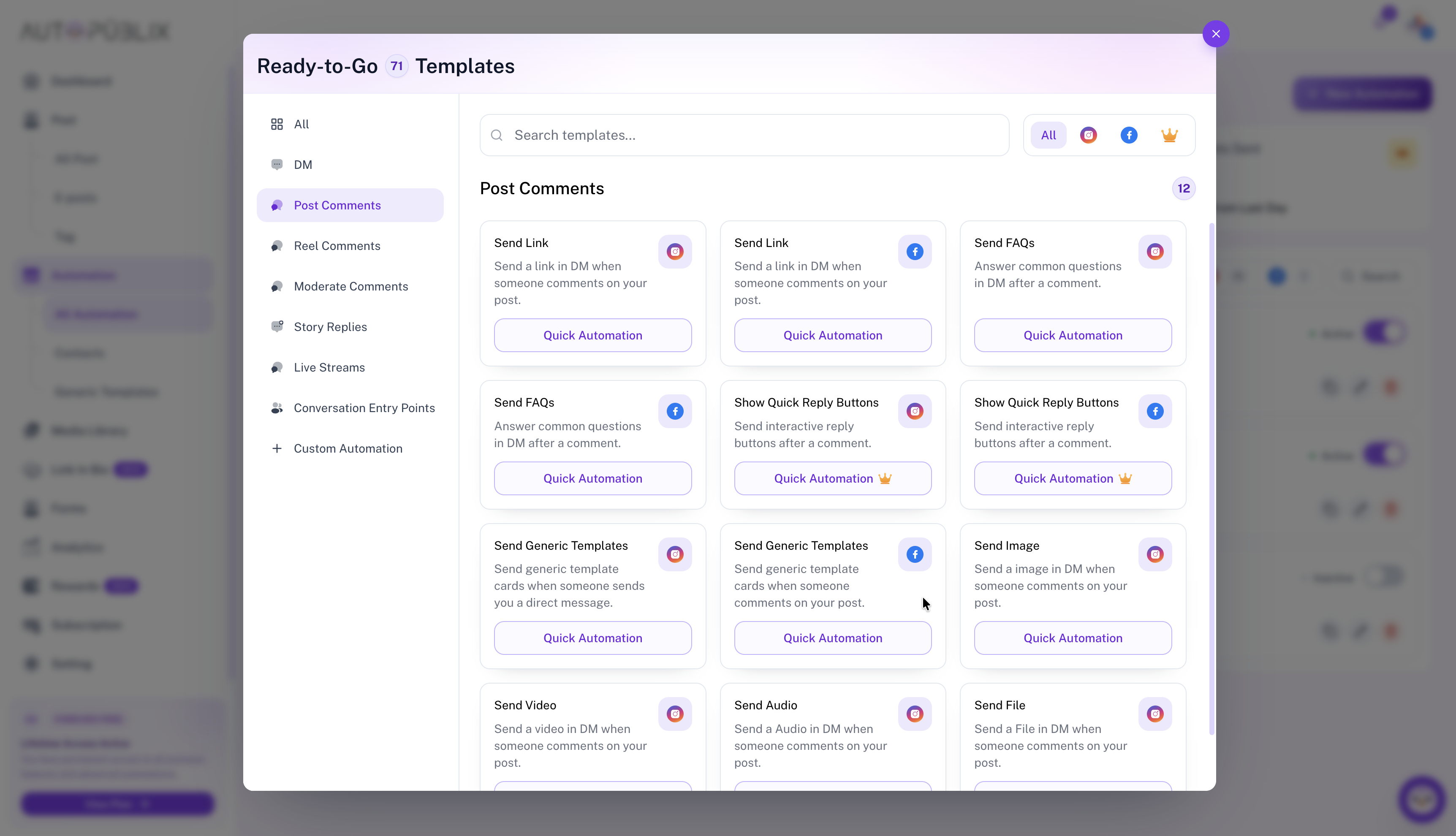
How Post Comment Works
After you open a Post Comment template, the builder is split into the trigger (when someone comments) and what they receive next — a public auto-reply on the comment and/or a DM payload from the template you chose.
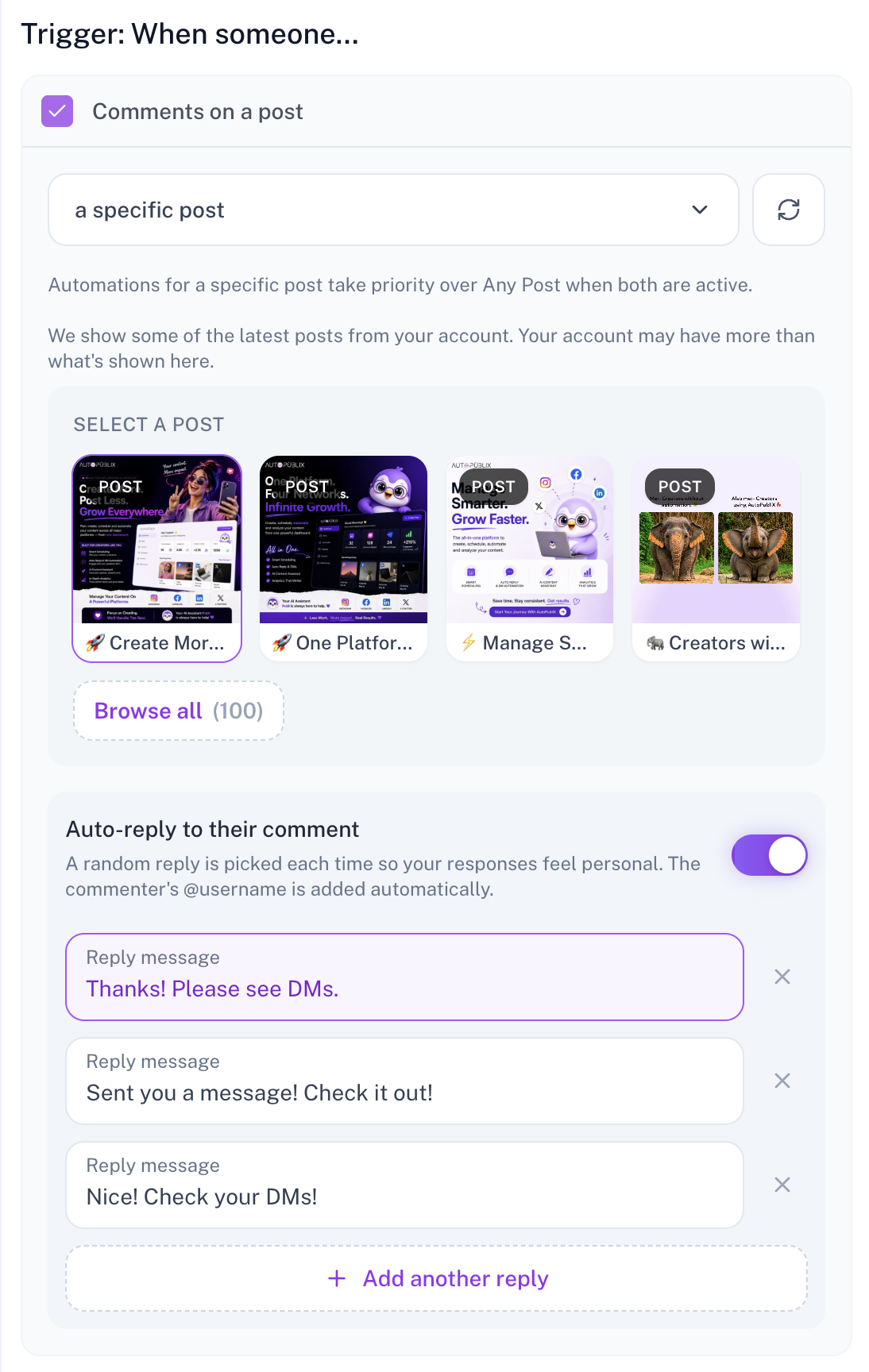
Trigger: When someone comments on a post
Enable Comments on a post, then choose:
- Any post — runs on comments across your feed posts (subject to keyword rules you set later).
- A specific post — pick one post from Select a post. The picker shows recent posts from the connected account; use Browse all if you need an older one. Use the refresh control to reload the list.
Automations for a specific post take priority over Any post when both are active for the same comment.
Auto-reply to their comment
Turn on Auto-reply to their comment to post a public reply under the comment. Add one or more Reply message lines (use + Add another reply for more). Each time, a random reply is picked so responses feel natural. The commenter’s @username is added automatically.
After the public reply (optional), the template’s DM step still runs — for example Send Link, FAQs, or media. Configure that in the same builder under They Will Get / final DM sections (see the payload guides linked above).
Loading posts and plan-locked accounts
When you pick a specific post, AutoPubliX fetches recent posts from the selected Instagram account or Facebook page. If that account is plan-locked, you will see a clear message such as: this Instagram account is locked on your current plan — choose your primary account or upgrade to sync posts.
Plan notes
Quick Reply Buttons and Hide/Moderate Comments under this category need Creator or Growth. Ask for Emails / Phone collection also requires Creator or Growth. DM sends count toward your monthly DM budget.