

Notifications
The Notifications center collects important in-app alerts for your AutoPubliX account — including post events, plan limit warnings, billing updates, social connection issues, team invites, rewards points activity, and system announcements.
Open it from the dashboard bell icon — choose View all notifications in the popover. There is no separate sidebar menu item for this page. The inbox belongs to the account you are currently working in: your own alerts when you are in your account, or the owner's alerts when you are in delegated mode through Share My Access.
To open this page, navigate to:
Navigation: Dashboard → Bell icon → View all notificationsWhat You Can Do on This Page
- Browse recent notifications with pagination (15 items per page)
- Filter by category or show unread items only
- Mark a single notification as read (clicking an unread item also marks it read)
- Mark all notifications as read in one action
- Refresh the list and open linked destinations from each alert
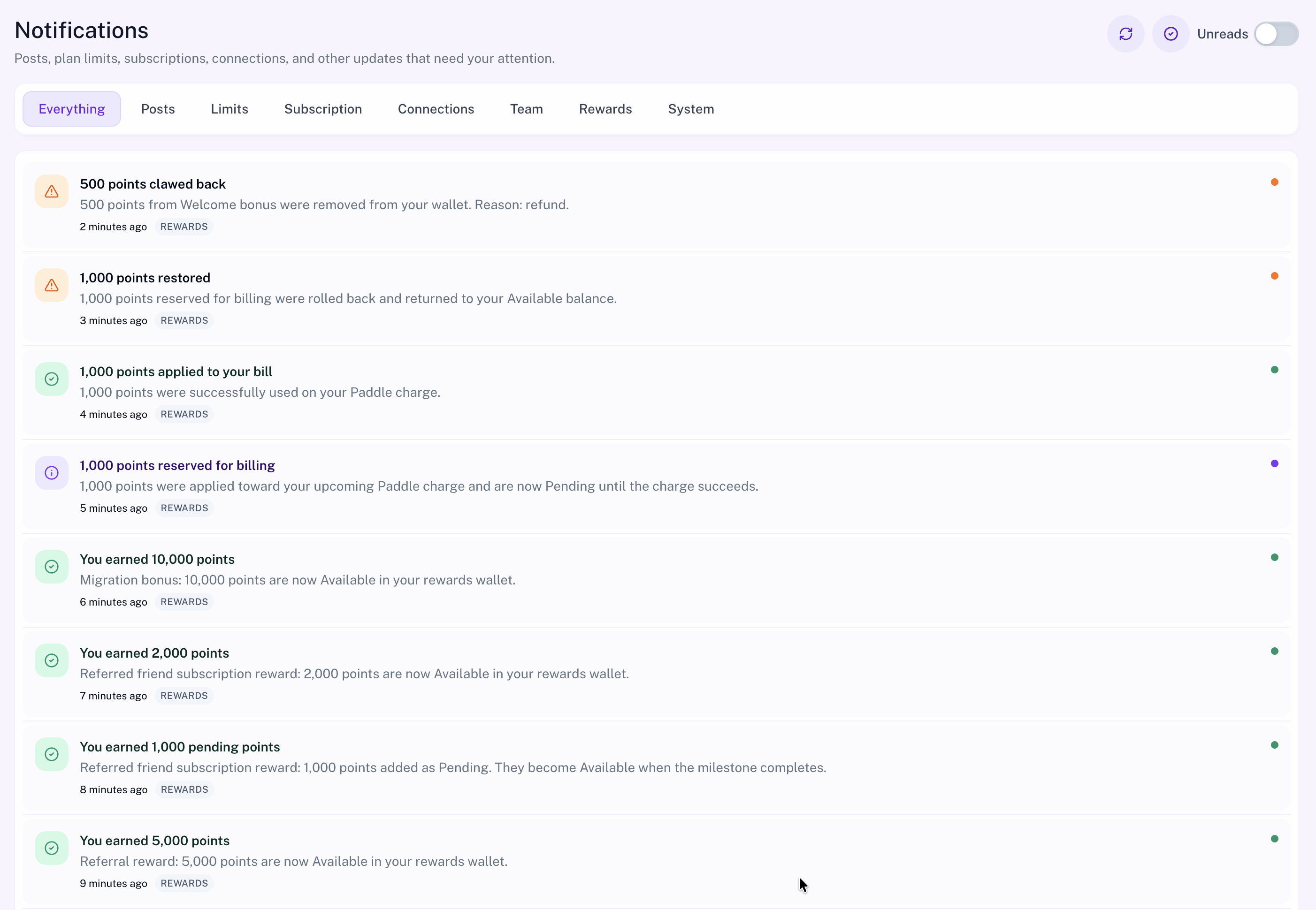
Filter by Category
Use the sticky category tabs at the top of the page to focus on a specific type of alert:
- Everything — all notifications
- Posts — publishing, scheduling, and post-related events
- Limits — usage warnings such as DM, storage, or AI token limits
- Subscription — billing, renewals, and plan changes
- Connections — social account or access-token issues
- Team — Share My Access invites and collaboration events
- Rewards — points earned, reserved for billing, applied on a charge, rolled back, or clawed back
- System — platform notices, store connection alerts, and automation events
Toggle Unreads when you only want to review items you have not opened yet.
Notification Bell
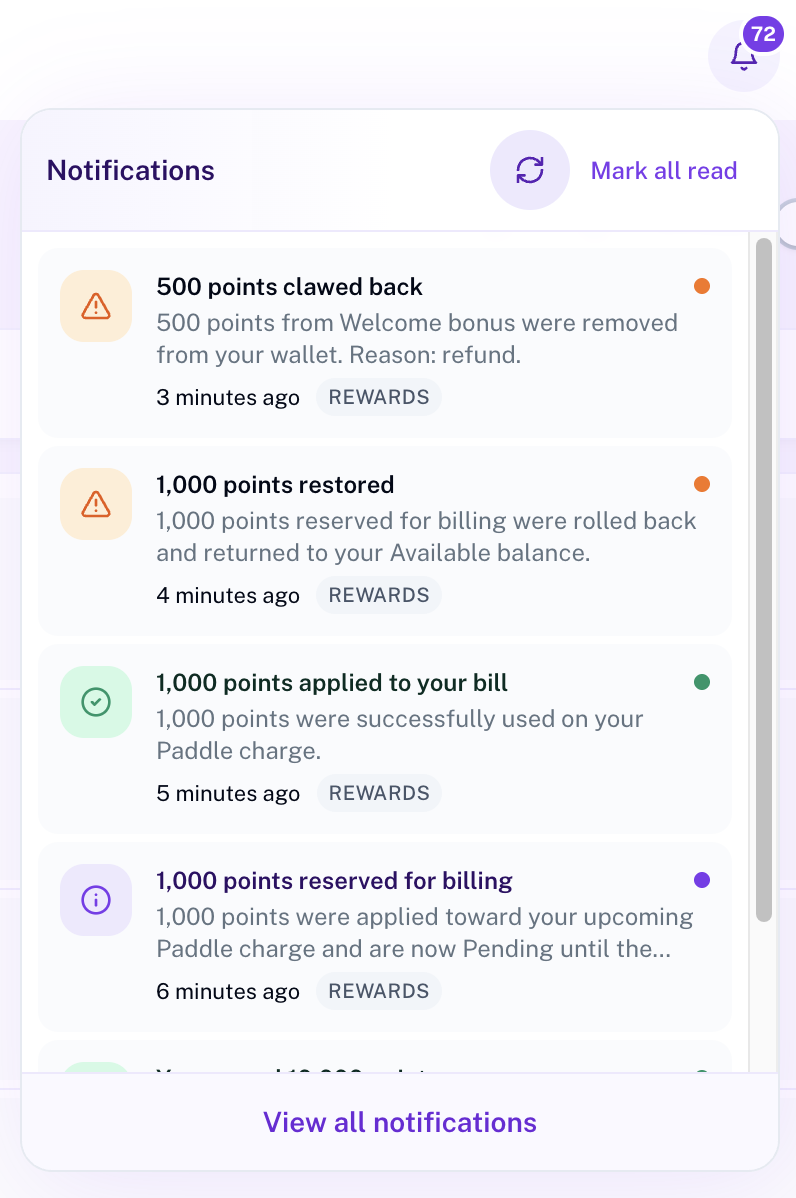
Click the bell icon in the dashboard header to open a quick preview of your latest alerts without leaving the page you are on.
- See the unread count on the bell badge
- Refresh the list or mark all items as read from the popover
- Scan recent alerts — including Rewards points activity — with type icons and category tags
- Open View all notifications to go to the full Notifications page
Use the full page when you need category filters, Unreads-only mode, or pagination. The bell is best for a fast check of what just happened.
Working With Notification Items
- Scan the list for new or unread alerts.
- Click an item to open the related destination when a link is available.
- Mark individual items as read, or use Mark all as read to clear the inbox.
- Use Refresh if you expect a new alert that has not appeared yet.
You cannot delete notifications manually. After you mark an item as read, AutoPubliX automatically removes it from the inbox after 15 days. Unread items stay until you mark them as read.
Browser Push Preferences
The Notifications center shows in-app alerts. The same alerts — including Rewards points activity — can also be delivered as browser push when push is enabled. To control browser push delivery, go to Settings → Notifications.
- Register your current browser to receive push alerts
- Review the list of registered devices
- Remove old or unused devices
Push preference settings are available to account owners. Delegated team members do not manage the owner's push devices.