

All Automations
The All Automations page is your control center for every automation workflow in AutoPubliX. Monitor performance, review active rules, and create new automations from ready-to-use templates.
To open this page, navigate to:
Navigation: Dashboard → Automation → All AutomationWhat You Can Do on This Page
On this page, you can view and manage all your automations from a single dashboard. Automations help you automatically respond to messages, comments, and other social media interactions without manual effort.
You can track how your automations are performing through different metrics such as the number of active automations, triggers executed, DMs sent, and comments replied.
The automation list allows you to quickly see which automations are active and how many triggers, direct messages, and comments they have processed.
You can also perform actions like creating a new automation, searching for existing automations, or managing individual automation workflows.
Automated DMs count toward your monthly plan budget: 3,000 on Free, 50,000 on Creator, and Unlimited on Growth. When you approach the limit, AutoPubliX shows usage alerts in Notifications and on the Subscription page.
Plan-locked accounts and resources
After a downgrade — or when you have more connected social logins (Instagram, Facebook, LinkedIn, X, Threads) or Facebook pages than your plan allows — excess accounts stay connected but become plan-locked. In the automation builder you may see a banner such as: the selected account or page is locked, and triggers stay paused until you upgrade or choose an unlocked account.
- You can still save as draft on a locked account; Activate requires an unlocked account or page.
- Premium templates (Quick Reply Buttons, Custom Flow, Hide/Moderate Comments, Live Stream, Ice Breakers, Persistent Menu) require Creator or Growth. On Free they stay locked or deactivate after downgrade.
- Media files, generic templates, and forms beyond Free limits can show a Plan locked badge and are skipped when automations send.
Manage connections under Settings → Social Connections, or see Troubleshooting for common plan-lock messages.
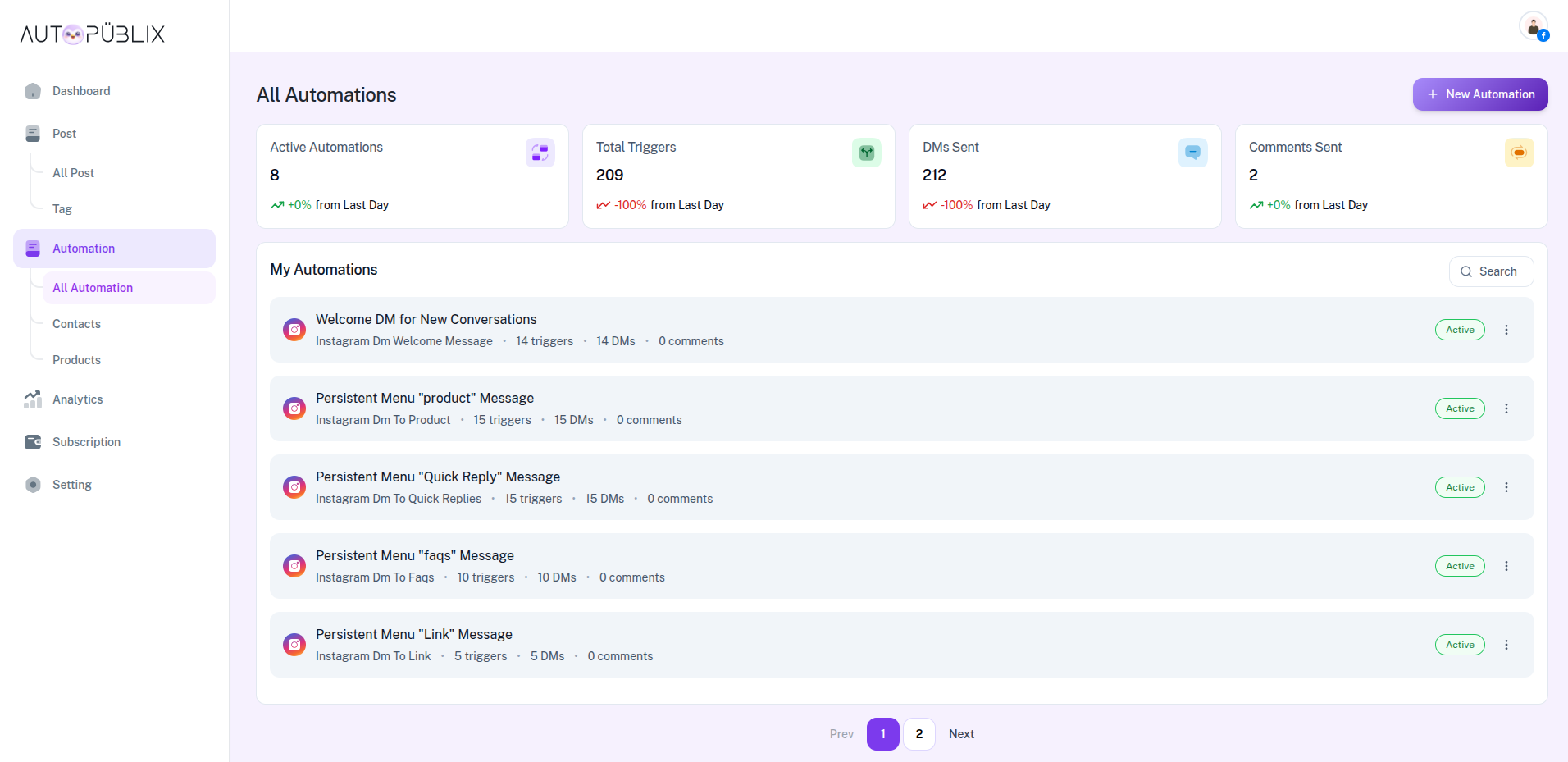
Key Metrics Cards
At the top of the page, you will see four key metric cards that provide a quick overview of automation activity.

1. Active Automations
Displays the total number of automations that are currently active.
2. Total Triggers
Shows how many times automation triggers have been activated.
3. DMs Sent
Displays the total number of automated direct messages sent to users.
4. Comments Sent
Shows how many automated comment responses have been posted.
My Automations
You can see a list of all automations that have been created in your account.
Each automation displays:
- Automation name
- Automation type (Instagram / Facebook automation)
- Number of triggers
- Number of DMs sent
- Number of comments sent
- Automation status (Active / Inactive)
- Action menu for managing the automation
This helps you easily monitor automation performance and activity.
Search Automations
Use the Search option at the top right of the automation list to quickly find a specific automation.
Create New Automation
Click the “New Automation” button located at the top right corner of the page.
The system provides 71 ready-to-use automation templates that help you quickly create automation workflows without building them from scratch.
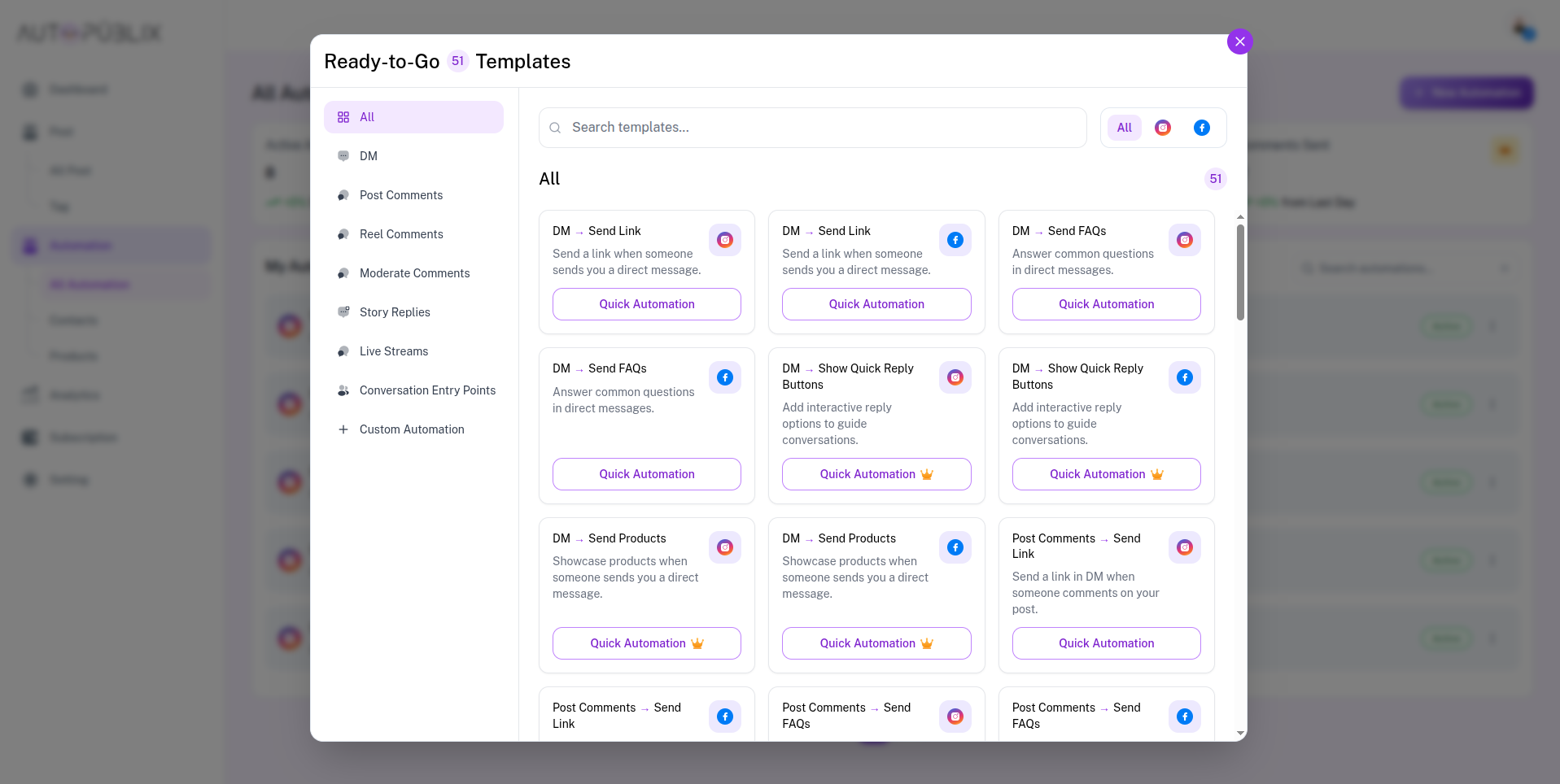
These templates are organized into different categories such as:
- DM Automations
- Post Comment Automations
- Reel Comment Automations
- Comment Moderation
- Story Replies
- Live Stream Automations
- Conversation Entry Points
- Custom Automation
To create a new automation:
- Click New Automation
- Browse or search for a template
- Select a template
- Configure the automation settings if needed
- Publish the automation
Once published, the automation will automatically start responding based on its configured trigger.
This feature allows users to quickly launch powerful automations in just a few steps.
Manage Automation
Each automation includes an action menu where you can manage the automation.
Status labels on each card reflect the real workflow state: Draft, Scheduled, Inactive, Active, or Paused (including when the connected account is plan-locked or a premium template was locked after downgrade).
Available actions may include:
- View automation details
- Edit automation workflow
- Enable or disable automation (when the account and template are not plan-locked)
- and more...
Delete Automation
Click the“Delete option” in the automation action menu to remove an automation.
You will be asked to confirm before the automation is permanently deleted.