Persistent Menu Automation

To create this automation, go to the All Automation page and click New Automation. From the available templates, select the Show Chat Menu automation template. After opening the template, you can configure the automation settings as described below.

To open this page, navigate to:

Navigation: Dashboard → All Automations → New Automation → Show Chat Menu

What You Can Do on This Page

The Persistent Menu Automation feature allows you to add a permanent menu inside your chat interface that users can access at any time during a conversation. This menu provides quick access to important links, helpful information, or automated responses without requiring users to type a message.

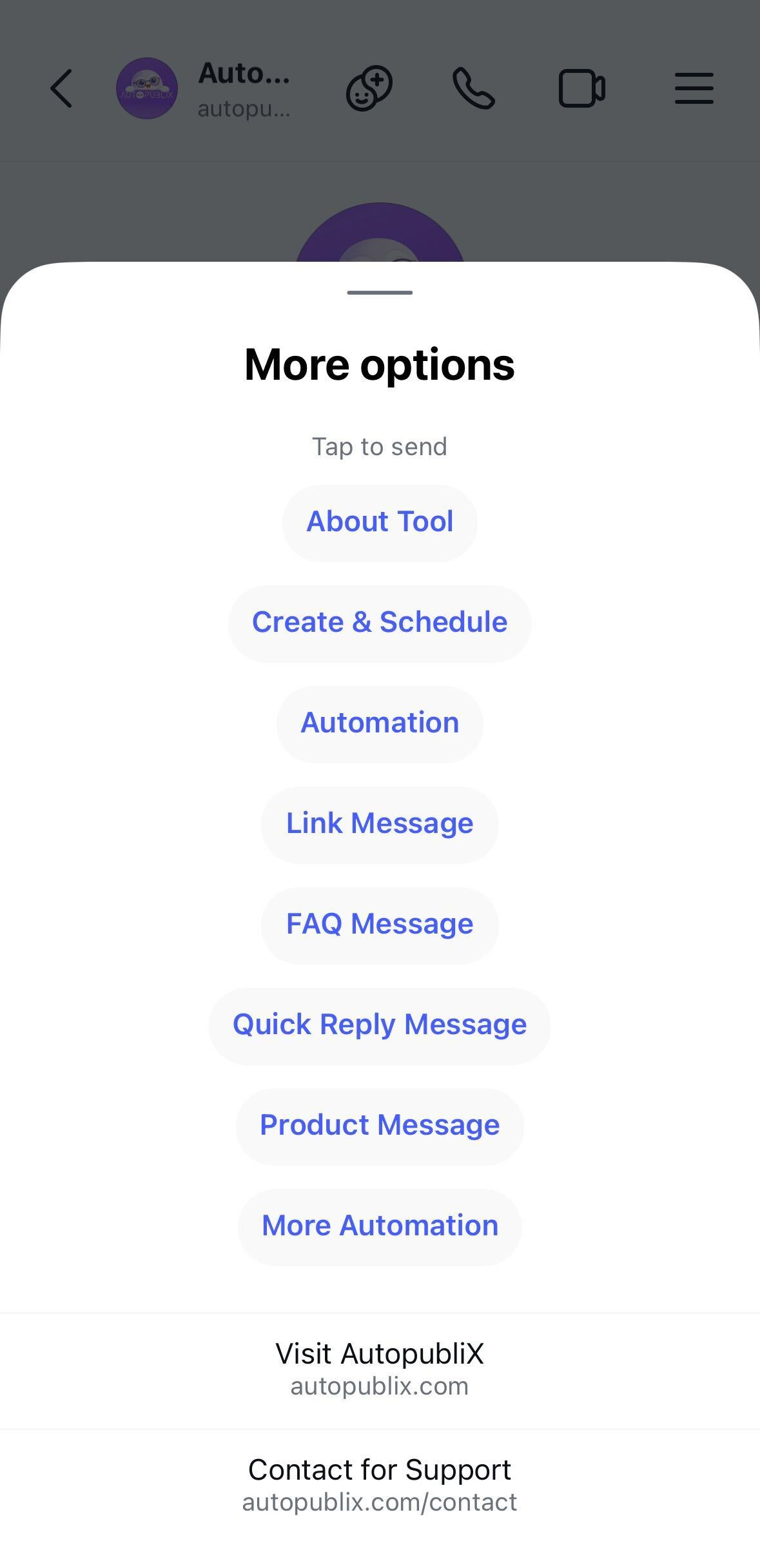
When the Persistent Menu is enabled, a menu icon appears in the chat interface. When users click this icon, a menu popup opens, displaying the list of available options you configured. Users can then select any menu item to either open a webpage or send an automated message in the chat.

This feature is useful for providing quick navigation to important resources, such as support pages, product information, FAQs, documentation, or other commonly requested details.

Persistent Menu
Platform connections

Platform & Connections

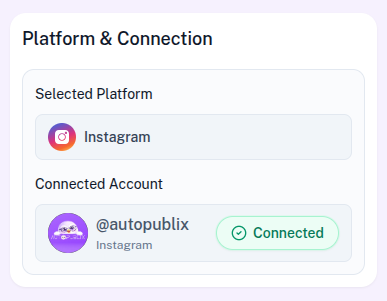
In this section, the selected platform will already be configured based on the template you chose. The automation can run on either Instagram or Facebook.

If the platform connection shows as disconnected, you can reconnect your account by going to the Settings page.

Below that, you will see the Connected Account setting. Here, you need to select the account where the automation should run.

For Instagram, only one account can be connected at a time, so it will appear automatically.

For Facebook, if you manage multiple pages, you must select the specific page where the automation should be applied. One page may already appear as the default page, based on the settings configured in the Connection Platform tab.

Persistent Menu Setup

Similar to the Ice Breakers feature, the Persistent Menu can only be created once per account. After it is created, you cannot create another Persistent Menu for the same account. However, you can edit, update, or remove menu items at any time.

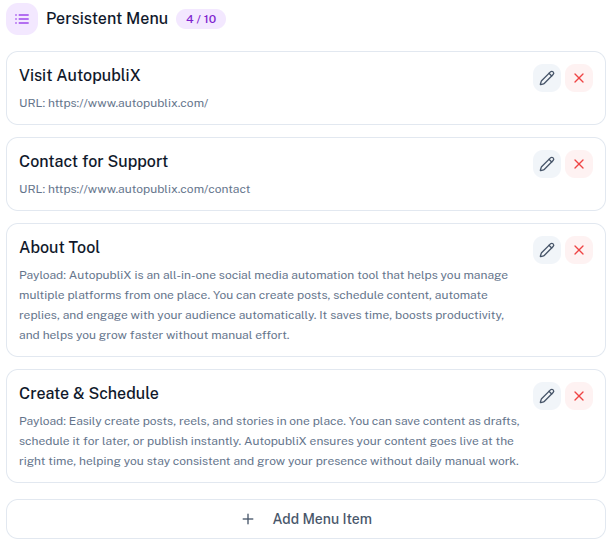
You can add up to 10 menu items in the Persistent Menu. These items appear in the menu popup when users click the menu icon in the chat.

To add a new menu item, click Add Menu Item and configure the required details.

Types of Menu Items

There are two types of menu items that can be added to the Persistent Menu.

Web URL

This option allows you to redirect users to a specific webpage.

To create this item, you must provide:

  • Title: The text displayed in the menu
  • URL: The webpage that will open when the user clicks the menu item

When the user selects this item from the menu, the system will automatically open the specified webpage.

This option is commonly used for links such as:

  • Official website
  • Contact page
  • Help center
  • Product pages
  • Documentation or resources
  • And more...

Payload

This option allows you to send a predefined message directly in the chat when the user selects the menu item.

To configure this item, you need to provide:

  • Title: The text displayed in the menu
  • Message (Payload): The message that will be automatically sent in the chat

When a user clicks this menu item, the system automatically sends the configured message as a chat message.

This is useful for providing quick responses such as:

  • Product information
  • Service details
  • Frequently asked questions
  • Support instructions
  • And more...
Persistent Menu Setup

How Persistent Menu Works

Once activated, the Persistent Menu remains visible in the chat at all times. Users can open it whenever they need quick access to the available options.

Unlike Ice Breakers, which appear only at the beginning of a conversation, the Persistent Menu stays available 24/7 during the entire chat session. This allows users to access important actions or links anytime while interacting with your account.

The menu will continue to appear until it is removed from the automation settings.

Automation Action

This section controls the status of the automation and determines whether it is active or inactive.

  • Draft : The automation is saved but remains inactive. It will not trigger until activated.
  • Save and Deactivate : The automation is saved but not available for users yet.
  • Save and Active : The automation becomes live immediately. When a new conversation starts, the automation will automatically show the predefined Persistent Menu.
Meta

Secure Instagram & Facebook Automation

POWERED BY OFFICIAL META APIS
Official Meta API Integration
Secure OAuth Login
No Automation Bots

AutoPubliX helps creators and marketers automate engagement safely without sharing passwords.

Trusted By 5,000+ Creators And Marketers