

Media Library
The Media Library is where you upload, browse, and reuse images, videos, audio, and PDFs across posts, automations, templates, and Link in Bio. There are no folders or tags — files live in one shared library with type filters, search, grid/list views, and storage tracking by plan.
To open this page, navigate to:
Navigation: Dashboard → Media LibraryStorage Limits
- Free — 1 GB
- Creator — 5 GB
- Growth — 10 GB
A usage chip at the top shows used / limit (for example, 1.25 MB used / 1GB). When you reach the limit, uploads are blocked until you delete files or upgrade.
After a downgrade, files beyond the Free storage allowance can show a Plan locked badge. Locked media remains in the library but cannot be selected for new sends until you upgrade or free space within the plan limit.
Upload Media
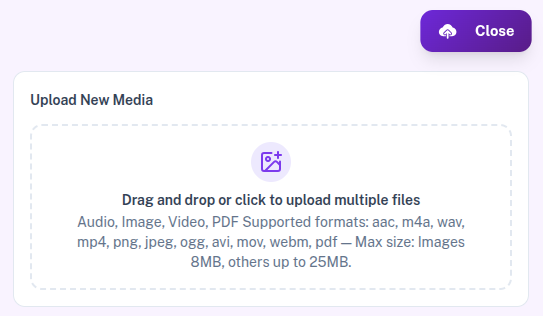
Click Upload to open Upload New Media. Drag and drop files or click to choose — multiple files are supported. Use Clear All to reset the queue, then confirm with Upload … Files.
Supported formats:
- Images — png, jpeg, jpg (max 8 MB each)
- Videos — mp4, mov, avi, webm, m4v (max 25 MB)
- Audio — aac, m4a, wav, ogg (max 25 MB; mp3 is not accepted)
- Documents — pdf only (max 25 MB)
Grid and List Views
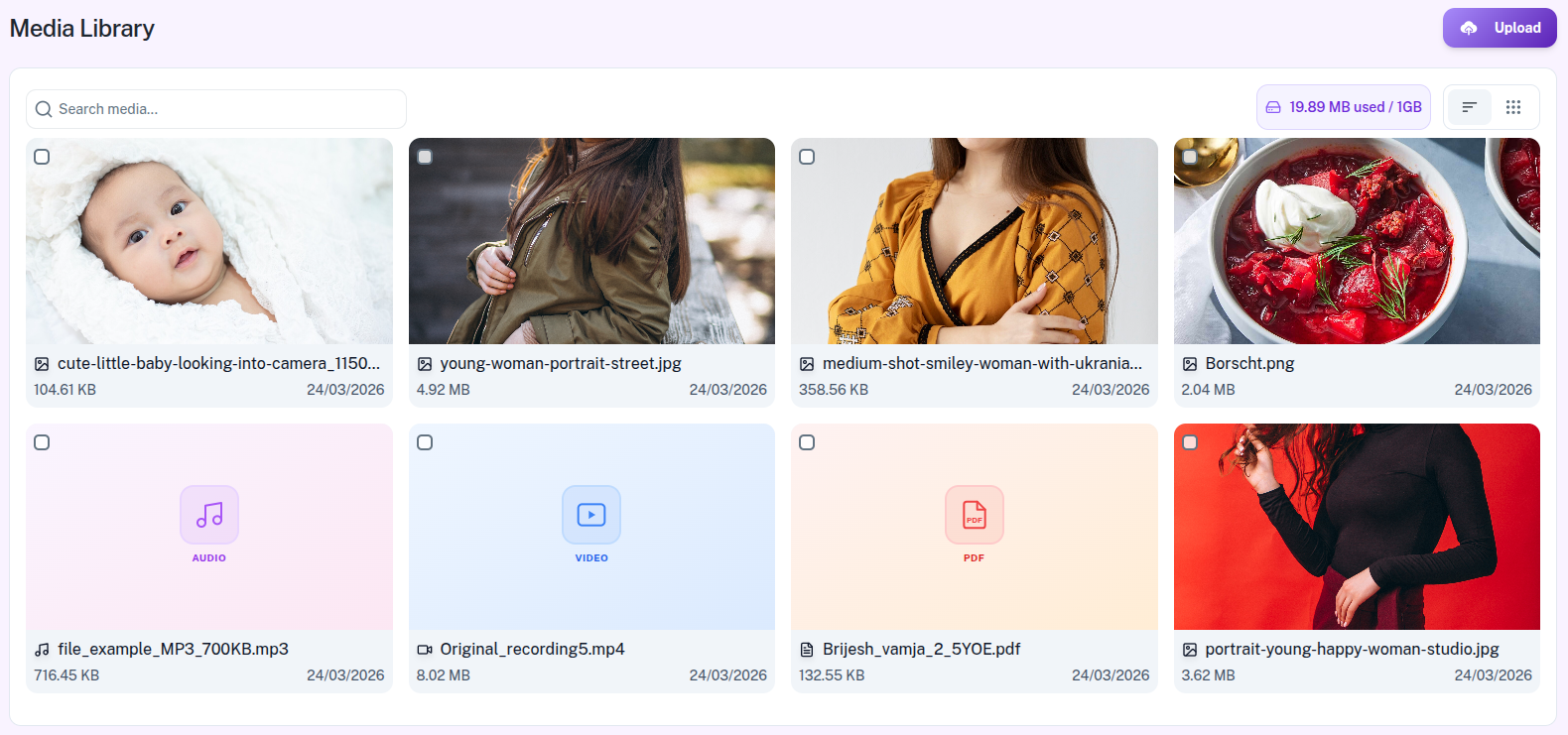
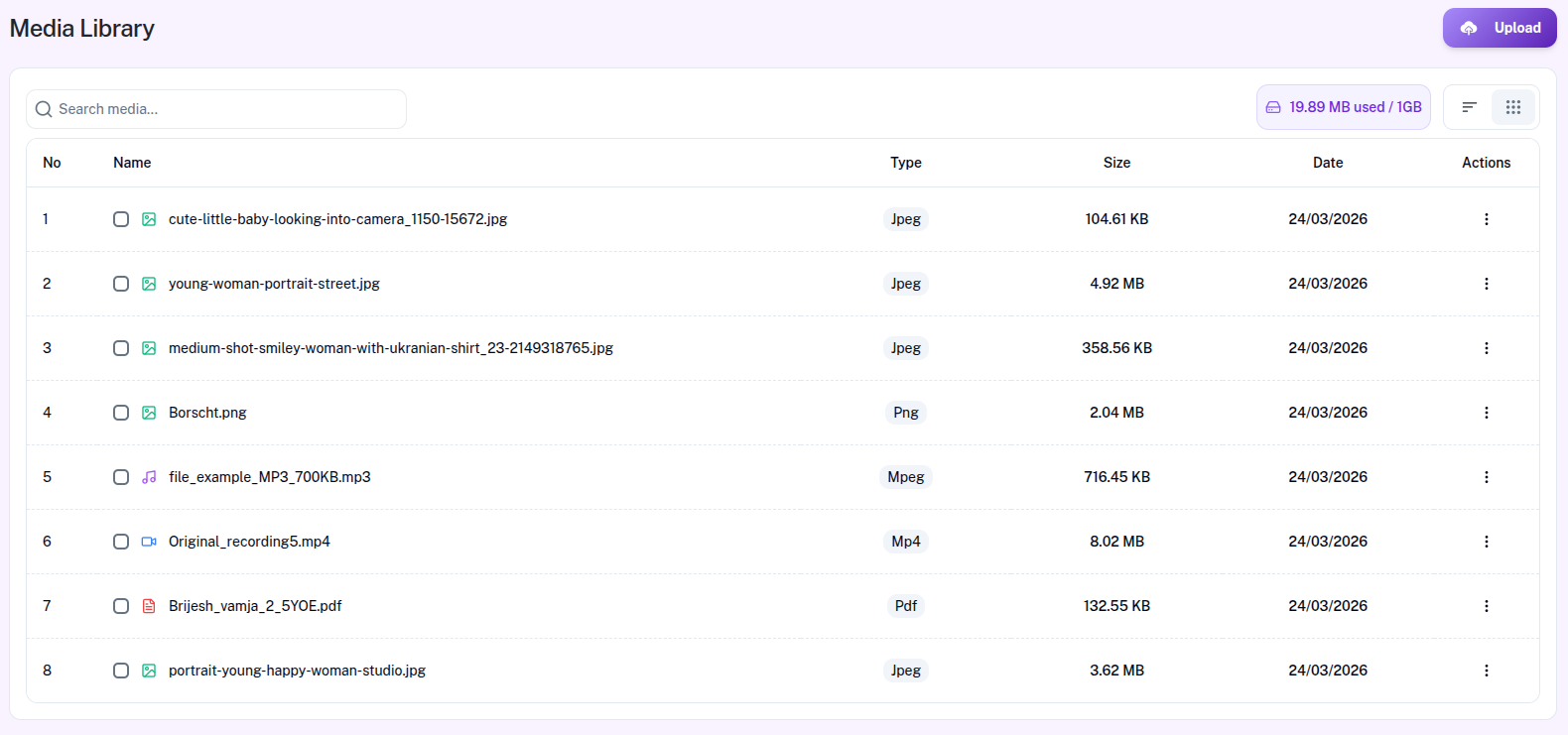
Switch between Grid and List with the view toggle. Your choice is remembered in this browser. A count chip shows how many media files you have.
- Grid — thumbnail cards with name, type badge, size, and date; hover for View Details and Delete
- List — table with No, Name, Type, Size, Date, and Actions (View / Delete)
Filter by File Type
Use the type chips above the library (Filter media by file type) to narrow the list:
- All — every file
- Images — image files
- Videos — video files
- Documents — PDFs
- Audio — audio files
- Others — anything that is not image, video, audio, or PDF
Each chip shows a count. Click All to clear the type filter. Changing type resets pagination. Sort stays newest first — there is no custom sort control.
Search
Click Search, then use Search media... to find files by filename or MIME file type string (for example, png or pdf). Search combines with the active type chip, and chip counts update to match the search. Close with the X or Escape to clear search. If nothing matches, you see No matching media found.
Media Details
Open any file with View Details / View to see a preview (image, video, audio player, or PDF), file information (type, size, date, name, owner), CDN URL, and Where this file is used across Generic Templates, Automations, Posts, and Link in Bio.
Select and Delete
When delete is allowed, checkboxes appear so you can select one or more files. The bar shows how many items are selected and a Delete action. You can also delete a single file from the card or list Actions menu.
- Select the file(s), or open Delete on one item.
- Confirm in the Delete confirmation dialog.