Link In BioOutdated
The Link In Bio feature lets you build a mobile landing page for all your important links — a hub you can place in Instagram, TikTok, X, and other bios. Choose a template, add layouts and social icons, publish as Draft or Live, set a primary page (paid plans), and share via copy or QR.
To open this page, navigate to:
Navigation: Dashboard → Link In BioPlan Limits
- Free — 1 page; cannot set a primary page
- Creator — unlimited pages; can set a primary page
- Growth — unlimited pages; can set a primary page
My Pages List
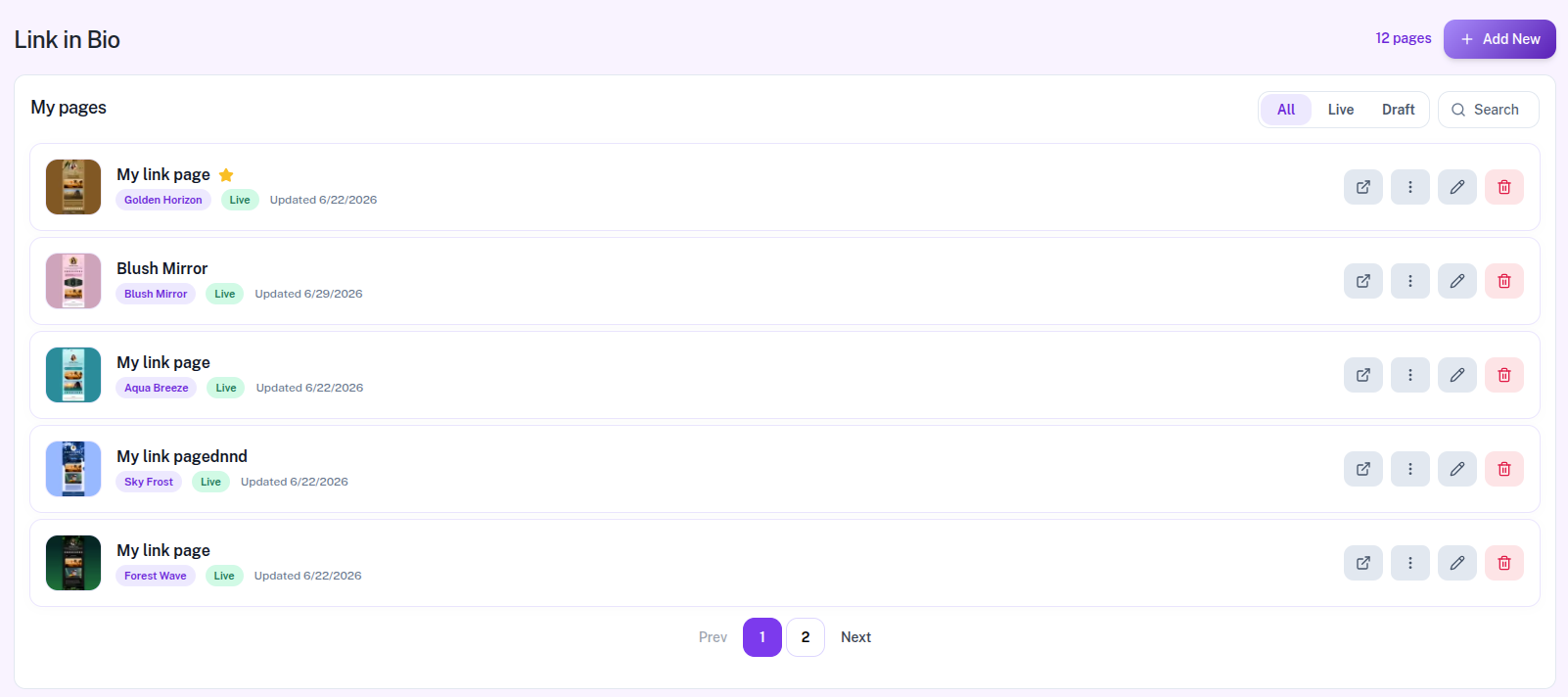
The dashboard card is titled My pages. Each row shows the internal page name (not the public title), template, Live/Draft badge, optional Created by (delegates), and last updated date.
- Filters: All, Live, Draft
- Search by title or template; pagination (10 per page)
- Add New — blocked when you hit the page limit
- Actions: open public page (Live + username only), ⋯ primary controls (Live only), edit, delete
Primary Page and Public URLs
On Creator and Growth, open the ⋯ menu on a Live row to Set as Primary or Remove Primary. Only one page can be primary.
- Primary + Live — short URL
/bio/{username} - Other Live pages —
/bio/{username}/{pageId} - Free plan cannot set primary, so the public link always includes the page id
Choose a Template and Username
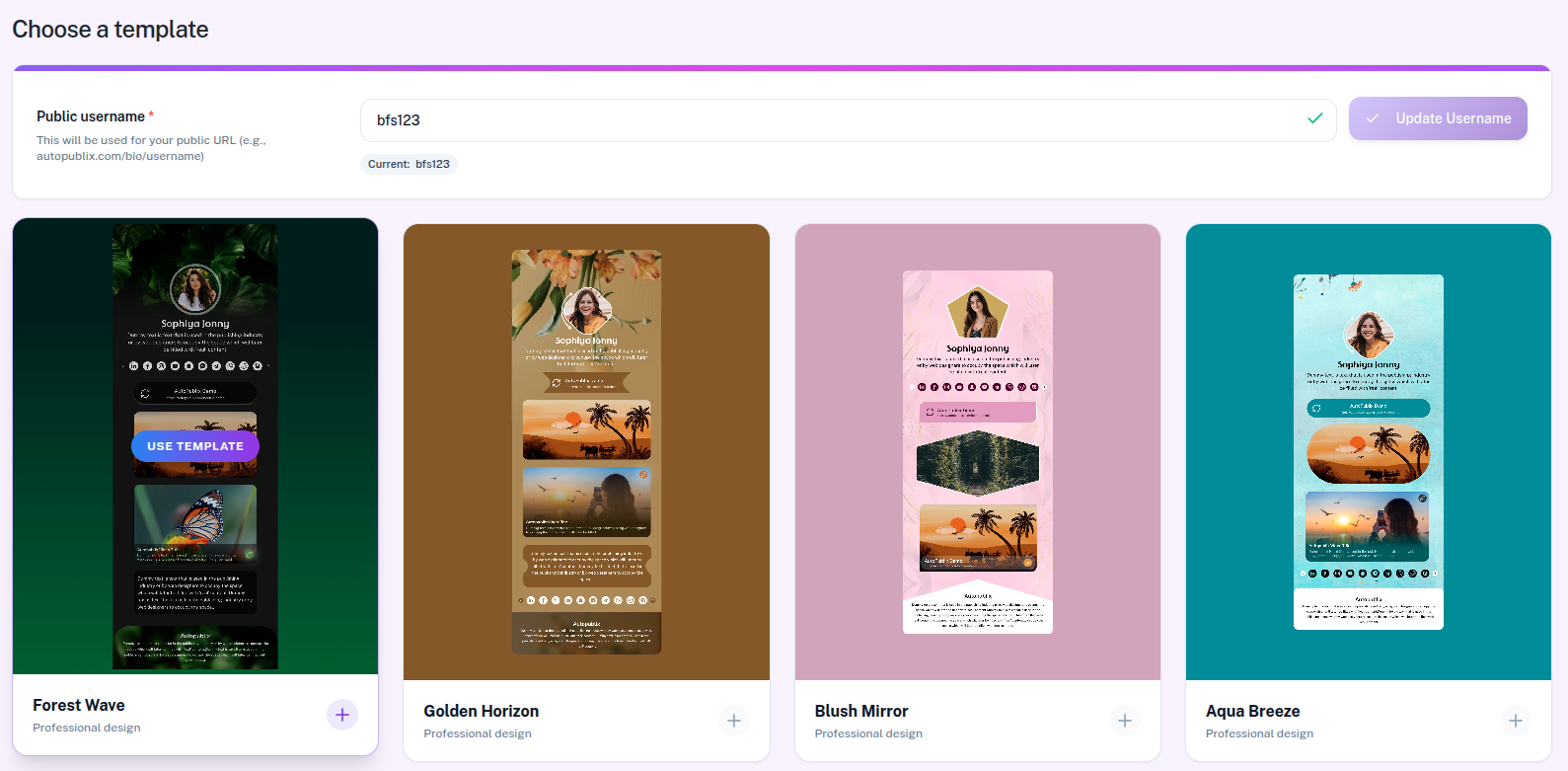
Click Add New to set your Public username (3–30 characters: lowercase letters, numbers, underscore) and pick a template — including Forest Wave, Golden Horizon, Blush Mirror, Aqua Breeze, and many more. Publishing Live requires a valid username.
Page Builder
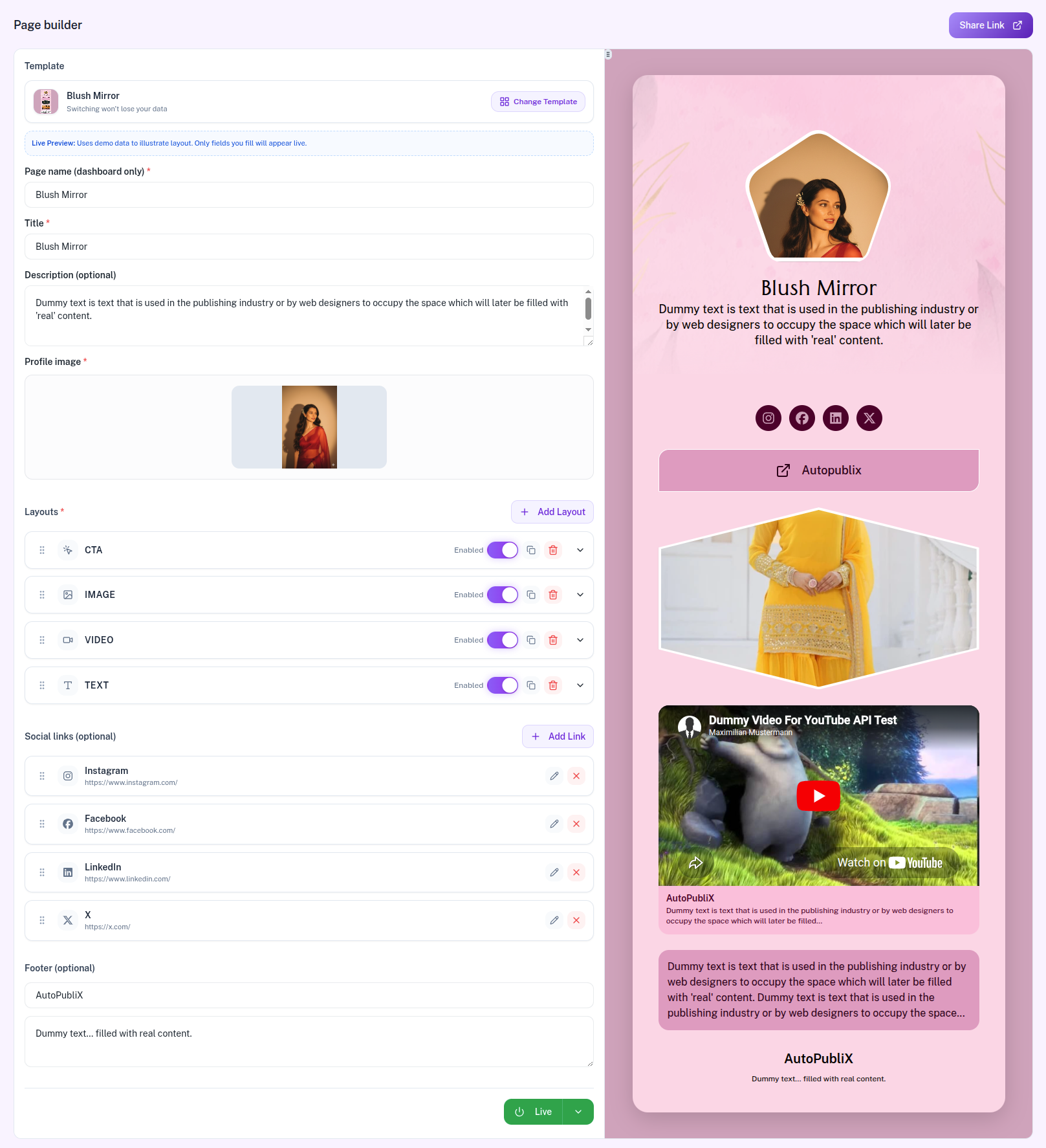
The builder has settings on the left and a mobile preview on the right. Sections include:
- Template — current design + Change Template
- Page name (dashboard only) — internal label in My pages
- Title, optional description, and required Profile image
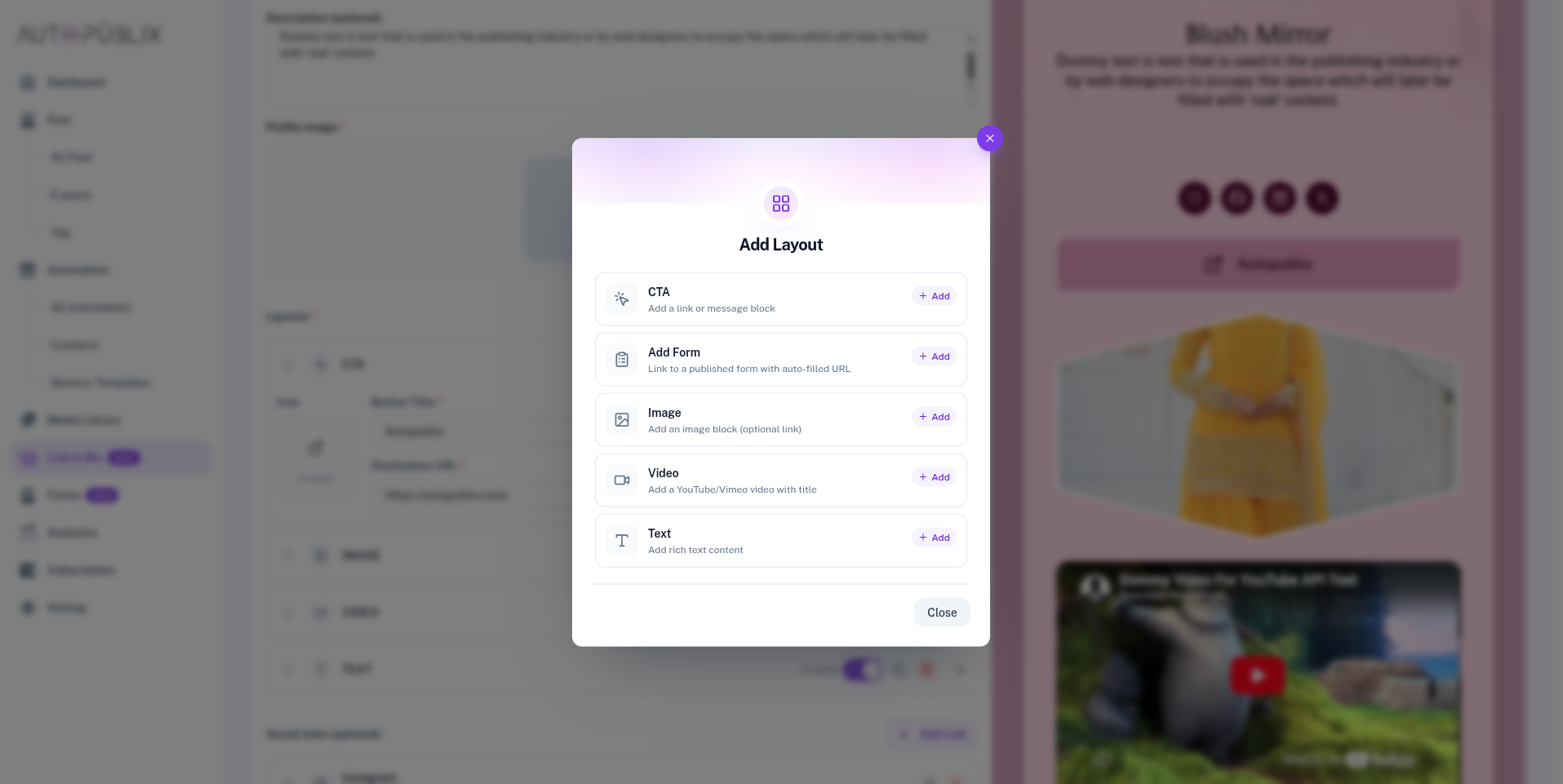
- Layouts — CTA, Add Form, Image, Video, Text (add, reorder, enable)
- Social links (optional)
- Footer (optional)
Save with the Draft / Live split button. Draft has no public link; Live publishes and enables Share Link. Form layouts use a published form from Forms.
Adding Layouts
- Open the Page Builder.
- Click Add Layout.
- Choose CTA, Add Form, Image, Video, or Text.
- Customize the block and drag to reorder.
Adding Social Links
- Open Social links (optional).
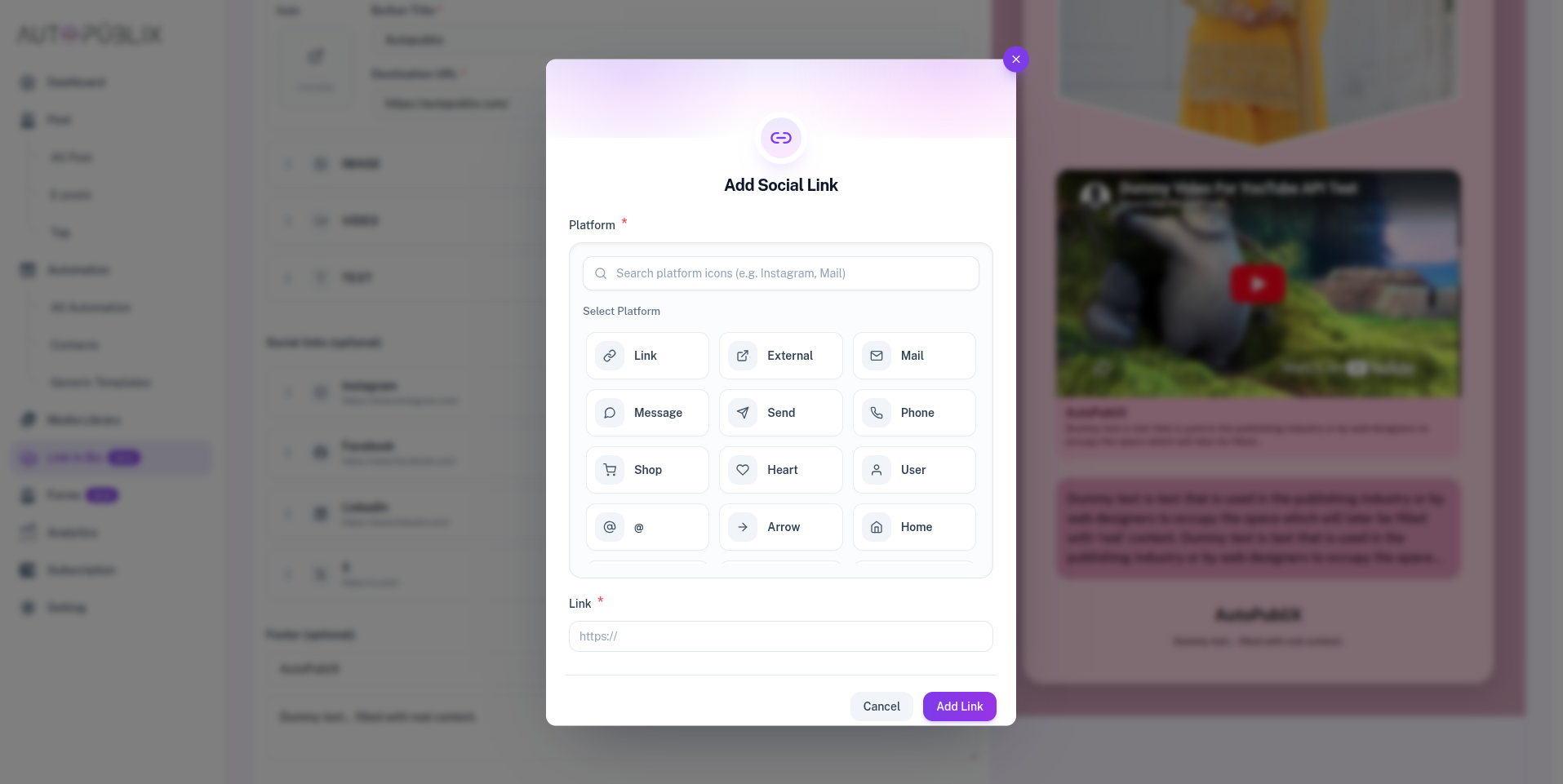
- Click Add Link.
- Pick an icon (Instagram, Facebook, X, LinkedIn, TikTok, YouTube, Mail, Phone, Shop, and more).
- Enter the URL or contact value and save.
Changing Templates
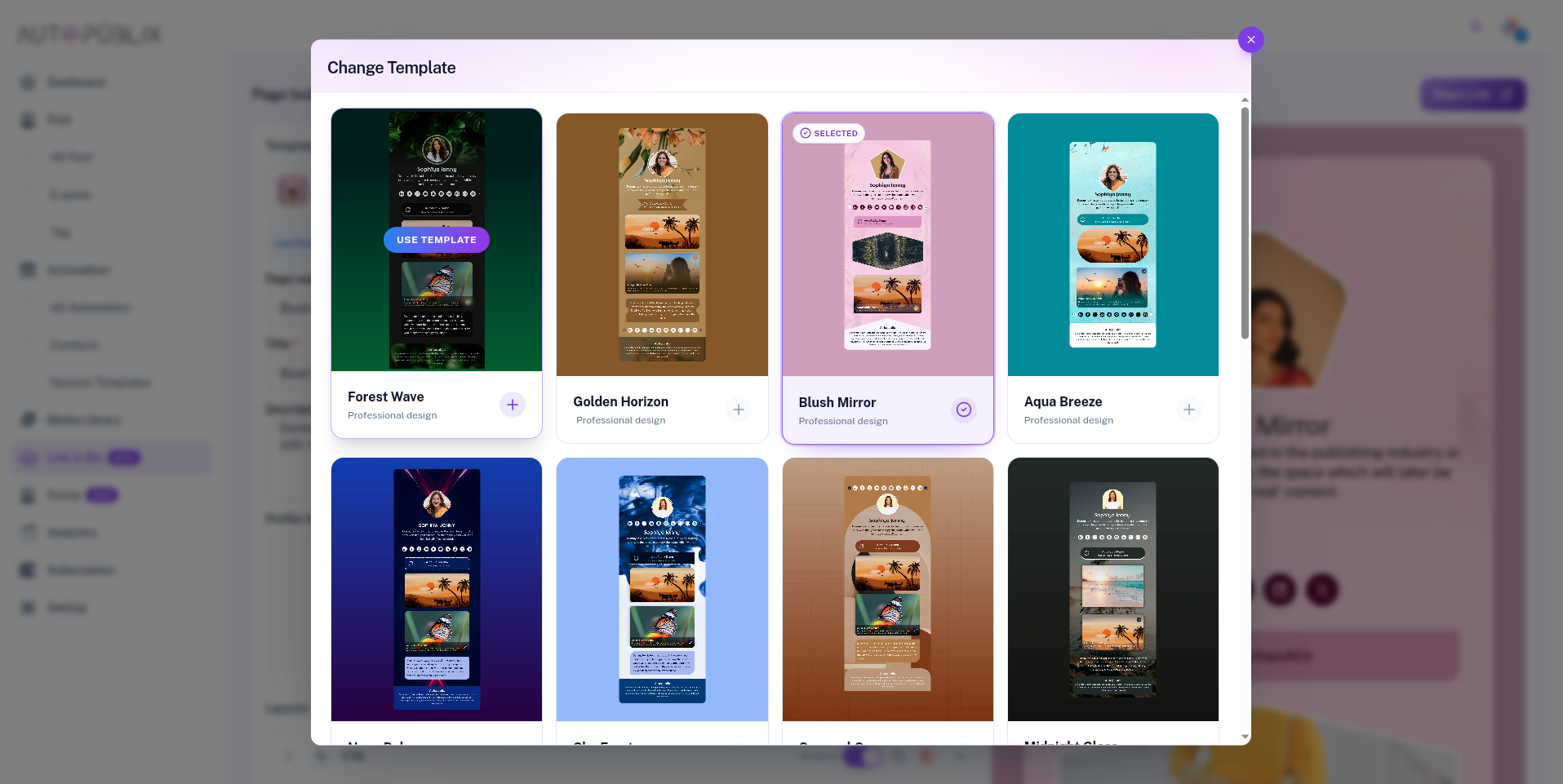
- Click Change Template in the builder.
- Browse designs and preview with your existing content.
- Confirm to apply — layouts and links adapt to the new look.
Sharing Your Link
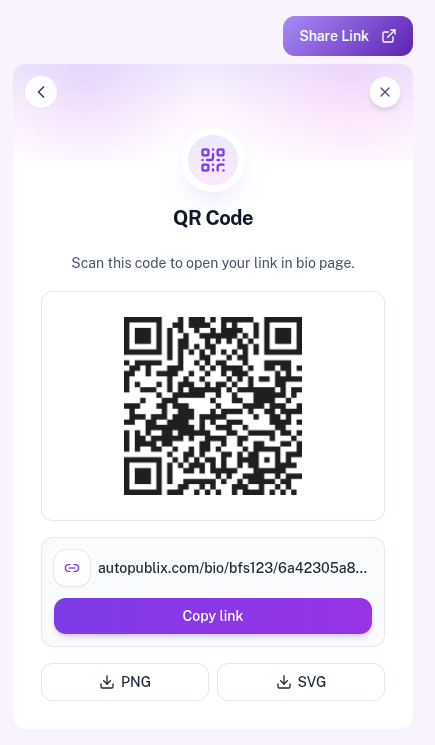
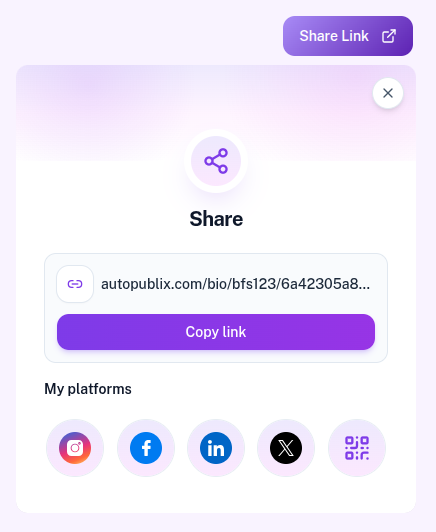
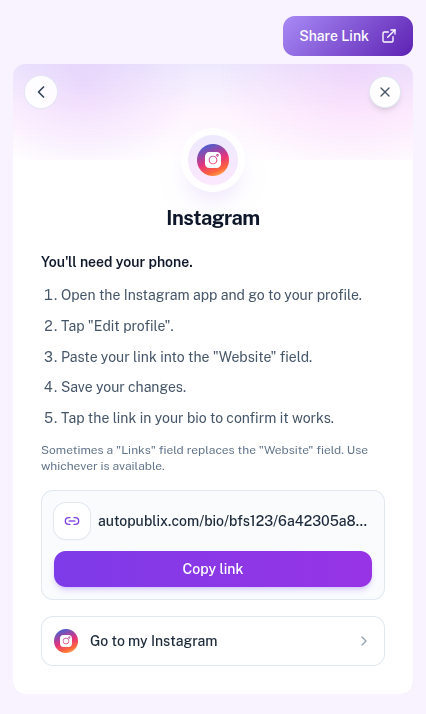
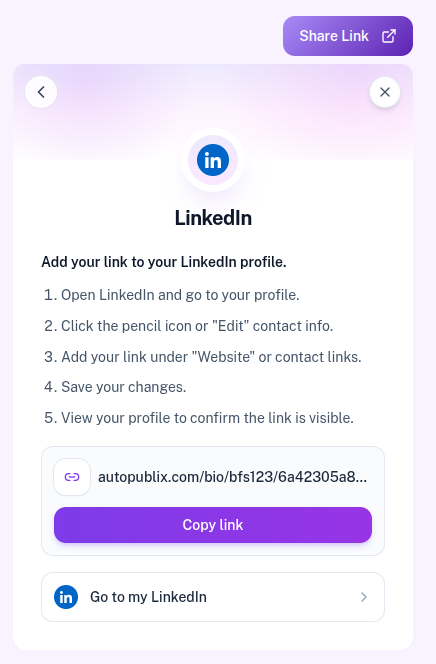
After the page is Live, open Share Link. The Share panel shows Copy link, My platforms (Instagram, Facebook, LinkedIn, Twitter (X)), and QR Code. Draft pages show “Publish as Live to get a link” until you publish.
Share to Instagram
You'll need your phone.
- Open the Instagram app and go to your profile.
- Tap "Edit profile".
- Paste your link into the "Website" field.
- Save your changes.
- Tap the link in your bio to confirm it works.
Sometimes a "Links" field replaces the "Website" field. Use whichever is available.
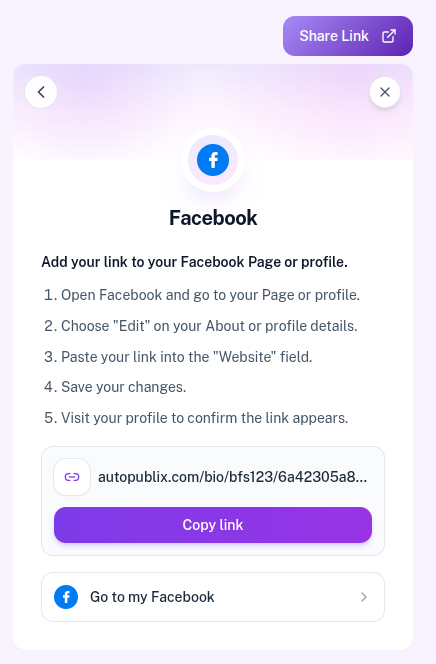
Share to Facebook
Add your link to your Facebook Page or profile.
- Open Facebook and go to your Page or profile.
- Choose "Edit" on your About or profile details.
- Paste your link into the "Website" field.
- Save your changes.
- Visit your profile to confirm the link appears.
Share to LinkedIn
Add your link to your LinkedIn profile.
- Open LinkedIn and go to your profile.
- Click the pencil icon or "Edit" contact info.
- Add your link under "Website" or contact links.
- Save your changes.
- View your profile to confirm the link is visible.
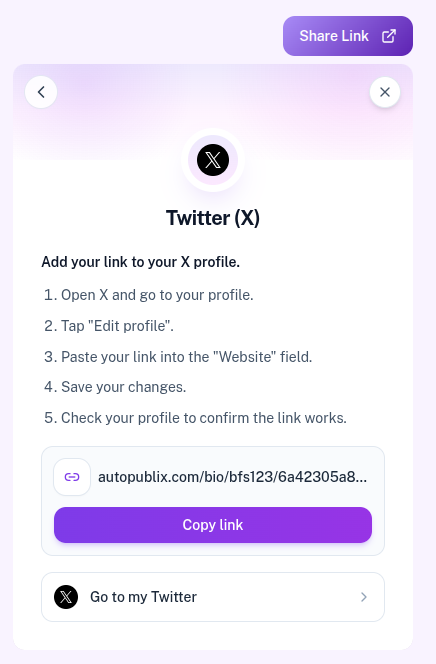
Share to Twitter (X)
Add your link to your X profile.
- Open X and go to your profile.
- Tap "Edit profile".
- Paste your link into the "Website" field.
- Save your changes.
- Check your profile to confirm the link works.
Sharing via QR Code
- Open Share Link.
- Select the QR Code option.
- Download with the PNG or SVG button.
- Use it on cards, flyers, or other offline materials.