Settings
The Settings page is where you configure your AutoPubliX account — profile and business details, social connections, store integrations, timezone, notification preferences, password, and team access.
Use the tabs below to jump to the section you need. Store Connections require the Growth plan. Share My Access is available on Creator and Growth plans (up to 5 invitations).
To open this sidebar, navigate to:
Navigation: Dashboard → SettingsWhat You Can Do on This Page
The Settings page provides multiple configuration sections that allow you to manage your profile information, connect social media accounts, integrate online stores, configure your timezone, and update your account password.
The page is organized into the following tabs:

- General : Manage personal profile and business information.
- Social Connections : Connect or manage linked social media accounts.
- Store Connections : Integrate eCommerce stores (Growth plan only — WooCommerce and Shopify).
- Timezone : Configure preferred timezone for scheduling.
- Notifications : Receive push alerts in your browser when important events happen.
- Change Password : Set or update your account password.
- Share my access : Invite up to 5 teammates (Creator and Growth plans).
Each tab provides specific configuration options for your account.
General Settings
The General tab is split into two sections: Profile and Business Information. This is where you maintain your identity and company details.
Profile Information
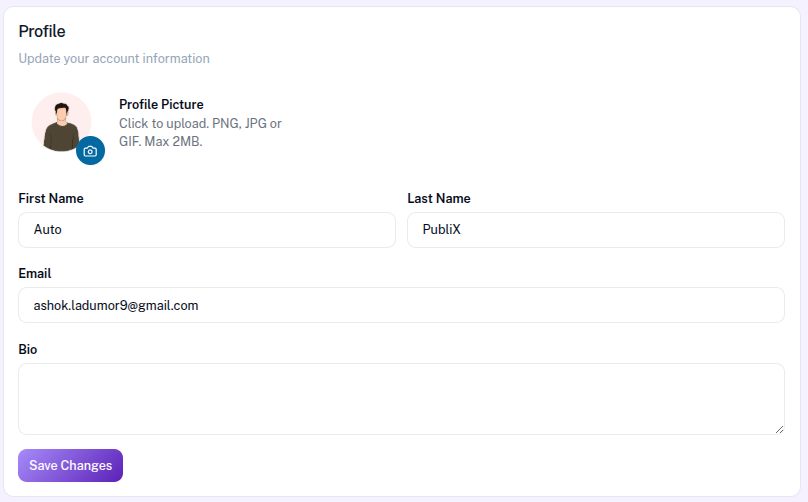
The Profile Information section lets you manage your personal account details. To set a profile picture, choose an image from your Media Library, then click Save Changes to apply it. You can update your first name (required) and last name (optional), which identify your account in the platform.
Your email address is shown as read-only — it is used for login and important account messages. Phone is required and should be a valid number. You can also add a bio with a short description about yourself or your business. After making changes, click Save Changes to store your profile.
Business Information
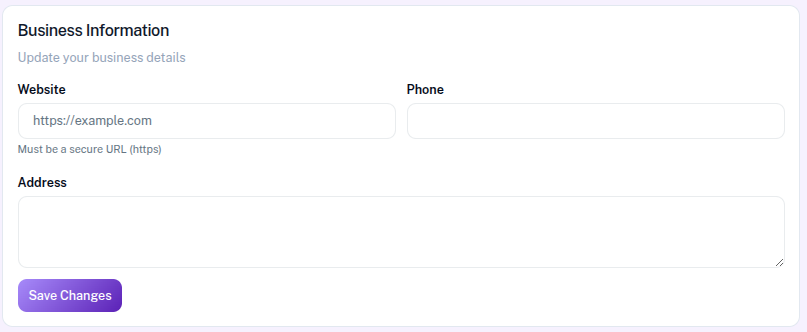
The Business Information section stores your company details: business name, business email, website URL, and address. If you add a website, use a secure https:// URL (for example: https://example.com). At least one field must be filled before you can save.
Keeping business name and business email up to date is especially important if you use Share My Access — invitations cannot be sent until both are set. After updating the details, click Save Changes to store them.
Social Connections
The Social Connections section allows you to connect and manage your social media accounts.
Connecting social accounts enables AutoPubliX to publish posts, automate replies, and track performance analytics.
Supported platforms include:
- Instagram (Business or Creator account only — personal accounts are not supported)
- Facebook (Multiple pages, subject to your plan’s page limit)
- Threads
- X (Twitter)
Plan limits apply to how many social accounts you can connect: 1 on Free, 3 on Creator, and 5 on Growth (per platform login). Facebook pages are capped at 1 / 3 / 10 on those plans.
Plan-locked accounts and pages
If you connect more logins (any platform) or Facebook pages than your plan allows — or you downgrade from a higher plan — excess accounts and pages stay connected but become plan-locked. Locked accounts still appear in Settings, posting, and automation builders with a plan-lock badge.
- Unlocked accounts and pages continue to publish, sync media, and run automations normally.
- Locked accounts cannot publish, sync posts/reels, or activate new automation triggers until you upgrade or free a slot (for example by disconnecting another account).
- On Subscription → Current Plan you can review social account slots and which connections count toward your limit.
See Troubleshooting if you see a plan-lock banner or cannot use a locked social account.
Instagram Connection
To connect your Instagram account, click the Connect button. You will be redirected to the official Instagram authorization page where you need to log in and grant the required permissions, such as access for posting content, viewing analytics, and running automation features. Once you approve the permissions, your Instagram account will be successfully connected and ready to use on the platform.
Instagram must be a Business or Creator account — personal Instagram accounts cannot be connected.
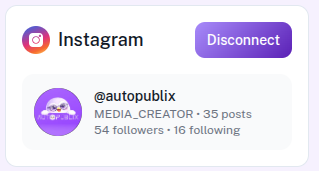
Displays the connected Instagram account information, including:
- Username
- Profile Picture
- Account Type (Business or Creator)
- Post Count
- Followers
- Following
If the account is connected, you can disconnect it using the Disconnect button.
Facebook Connection
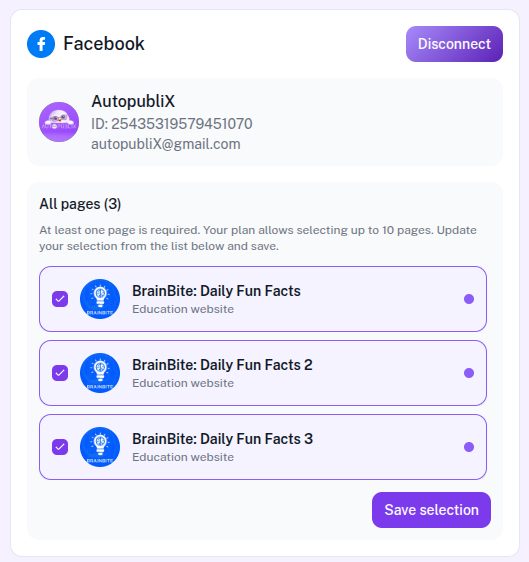
To connect your Facebook account, click the Connect button. You will be redirected to the official Facebook authorization page where you need to log in and grant the required permissions, such as access for posting content, viewing analytics, and running automation features. Once you approve the permissions, your Facebook account will be successfully connected and ready to use on the platform.
Displayed details include:
- Account name
- Account ID
- Email associated with the Facebook account
You can also select which Facebook pages should be connected.
Your subscription plan determines the maximum number of pages that can be connected.
After selecting pages, click Save Selection to confirm the connection.
LinkedIn Connection
To connect your LinkedIn account, click the Connect button. You will be redirected to the official LinkedIn authorization page where you need to log in and grant the required permissions, such as access for posting content and viewing analytics. Once you approve the permissions, your LinkedIn account will be successfully connected and ready to use on the platform.
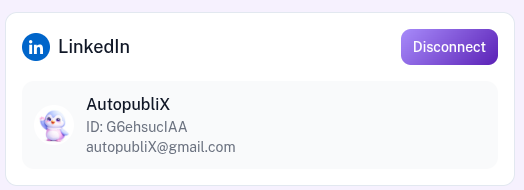
This section displays the LinkedIn account currently connected to your AutoPubliX account.
Displayed details include:
- Profile name
- Account ID
- Email address
- Profile Picture
If the account is connected, you can disconnect it using the Disconnect button.
X (Twitter) Connection
To connect your X (Twitter) account, click the Connect button. You will be redirected to the official X (Twitter) authorization page where you need to log in and grant the required permissions, such as access for posting content and viewing analytics. Once you approve the permissions, your X (Twitter) account will be successfully connected and ready to use on the platform.
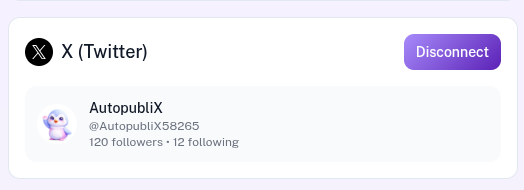
This section shows the X (Twitter) account that is currently connected to your AutoPubliX account.
Displayed details include:
- Account name
- Username (Twitter handle)
- follower statistics
If the account is connected, you can disconnect it using the Disconnect button.
Store Connections
The Store Connections section lets you integrate eCommerce stores with AutoPubliX so you can import product details into the post editor and related workflows. This tab is available on the Growth plan only. Free and Creator accounts see an upgrade prompt.
Supported store platforms in Settings today:
- WooCommerce
- Shopify
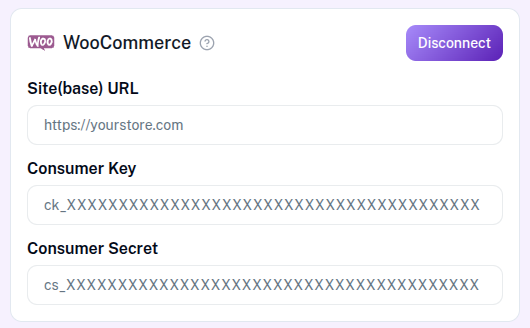
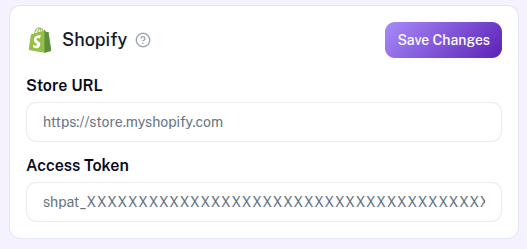
For WooCommerce, enter your site URL plus Consumer Key and Consumer Secret. For Shopify, enter your store URL and Access Token. Once connected, you can import products into the post editor.
WooCommerce Integration
When you connect your WooCommerce store, the platform can automatically access and display all products available in your store. This integration is used on the Manage Posts, allowing you to easily browse and select products directly from your WooCommerce catalog without manually copying product information.
Once a product is selected and inserted, the system will automatically populate the product details, such as the title, description, product link and more details into the post editor. This helps you quickly create product-focused posts while ensuring that the information matches your store listings.
Shopify Integration
When you connect your Shopify store, the platform can automatically access and display all products available in your store. This integration is used on the Manage Posts, allowing you to easily browse and select products directly from your Shopify catalog without manually copying product information.
Once a product is selected and inserted, the system will automatically populate the product details, such as the title, description, product link and more details into the post editor. This helps you quickly create product-focused posts while ensuring that the information matches your store listings.
Timezone Settings
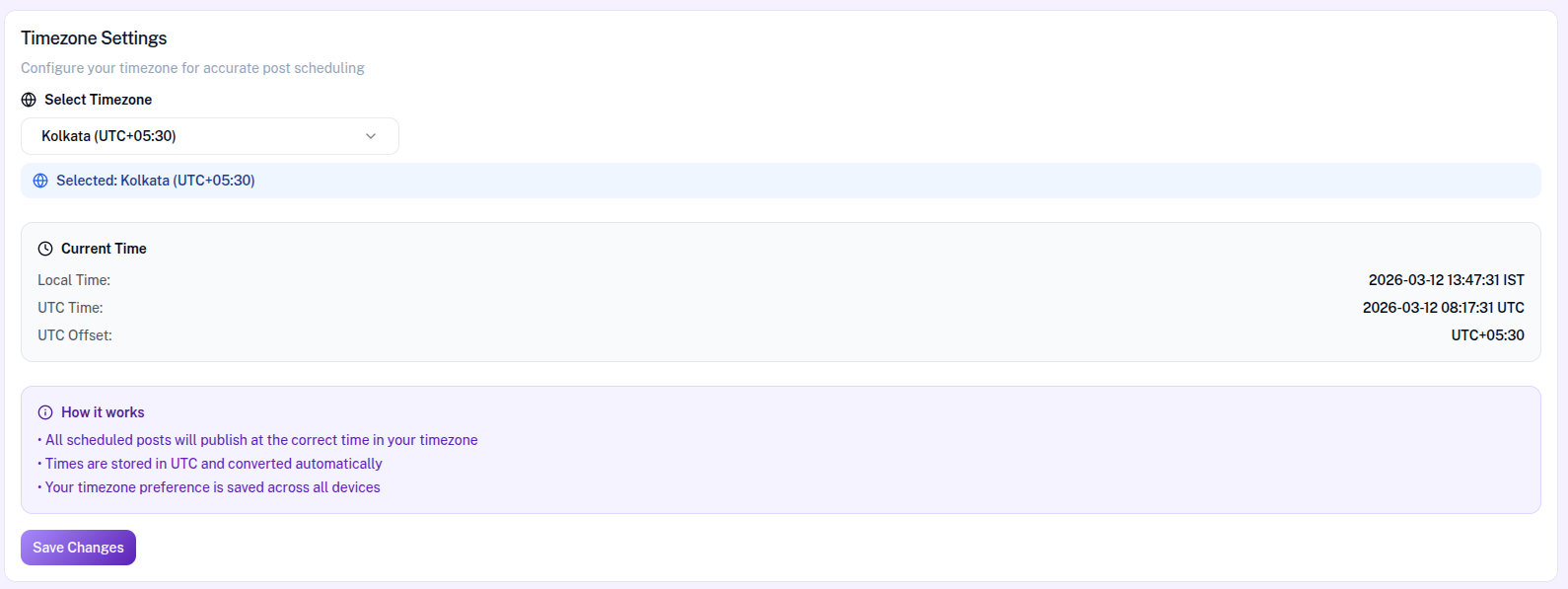
The Timezone section allows you to select your preferred timezone to ensure that posts and automations are scheduled accurately. You can choose your timezone from the dropdown list, such as Kolkata (UTC+05:30). Once a timezone is selected, the system will display the chosen timezone so you can confirm your preference.
The system also shows the current time based on the selected timezone, including the Local Time, UTC Time, and UTC Offset. This information helps verify that the timezone configuration is correct and ensures that all scheduled activities follow the correct time reference.
All scheduled posts will be published according to the timezone you select. While the system stores time values in UTC, they are automatically converted to your selected timezone when scheduling or publishing posts. Your timezone preference is applied across all devices, and you can click Save Changes to apply and store the selected timezone.
Notifications
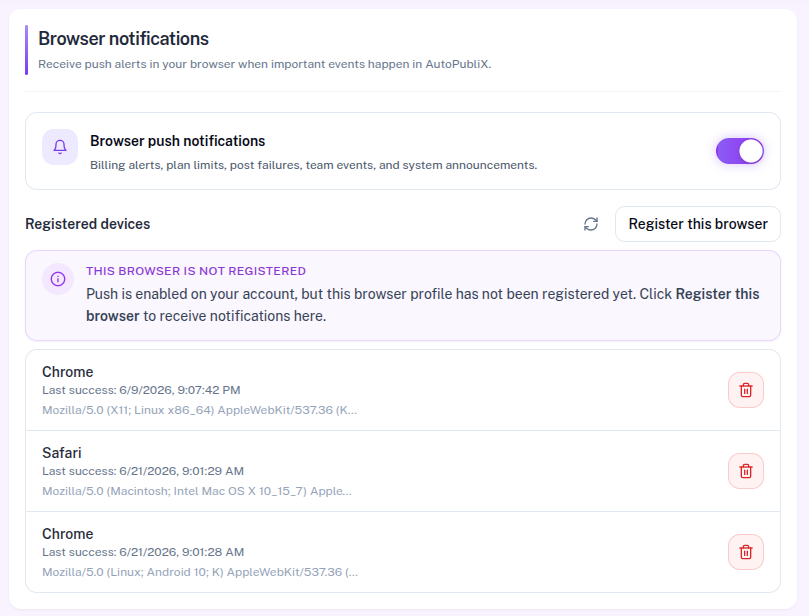
The Notifications section allows you to manage browser push alerts so you stay updated when important events happen in your AutoPubliX account. You can enable or disable push notifications for events such as billing alerts, plan limits, post failures, team events, and system announcements.
To start receiving notifications, your current browser profile must be registered. If it is not registered, you can simply click the Register this browser button to enable alerts on your device.
The Registered devices list displays all the browsers and devices where notifications are currently active. It shows the browser type, the last successful delivery time, and device details. You can easily remove any old or unused devices by clicking the delete icon next to them.
Change Password
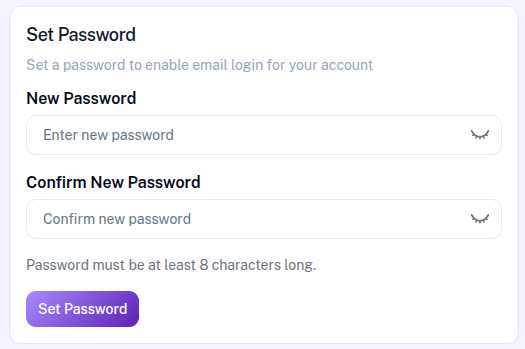
The Change Password section lets you set or update your account password. Enter a new password, then re-enter it in Confirm New Password so both entries match. Passwords must be at least 8 characters.
If you signed up with Google or another social login and do not have a password yet, this screen shows Set Password instead of a change flow — no current password is required. After you save, the new password is used for future email logins. Click Set Password or Save (wording depends on whether you already have a password) to finish.
Share my access
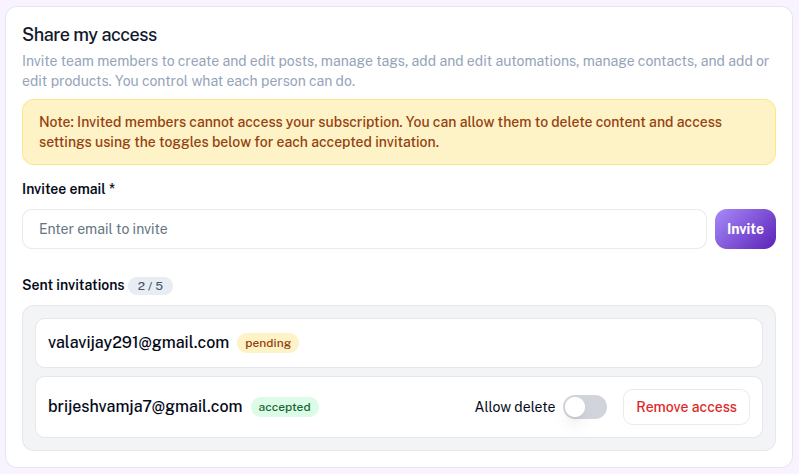
The Share My Access section lets account owners invite teammates to collaborate on the same AutoPubliX workspace. This feature is available on Creator and Growth plans. You can send up to 5 invitations per account. Free plan users see an upgrade prompt.
Before you invite anyone, set your business name and business email under Business Information — invitations cannot be sent until both are saved. Then enter the teammate's email (they must already have an AutoPubliX account) to send an invitation. Invited members can help with posts, tags, the media library, automations, contacts, and generic templates. They cannot manage subscription or billing, and they do not see owner-only settings such as password or push notification preferences.
Sent invitations appear in the Sent Invitations list with a status such as pending or accepted, along with the invitation count (for example 2 / 5). For accepted members you can toggle Allow Delete to control whether they may delete content, and you can revoke access at any time with Remove Access.
When a teammate is working in your account (delegated mode), they mainly see Social, Store, and Timezone settings in a view-only way. Their own Rewards wallet stays tied to their personal login — the Rewards menu is hidden while they are acting as you, and they never see your points. The Notifications center, however, shows the owner's inbox while they are in delegated mode, so they can follow account alerts such as connection or publishing issues.