

Manage Your Products
The Product Management section allows you to create and edit products that can be used inside your automation workflows. Products can represent services, digital tools, courses, or any resources that you want to promote through automated conversations.
From this page, you can define product details such as the product title, subtitle, default link, image, and interaction actions. These products can then be shared with users through automation messages.
The same page is used for both creating a new product and editing an existing product, making it easy to update product details whenever necessary.
To open this page, navigate to:
Navigation: Dashboard → Automation → Products → Create New ProductWhat You Can Do on This Page
On this page, you can create or update product information that will be displayed when the product is used inside automation flows.
You can upload a product image, provide a product title and subtitle, define the main product link, and configure action buttons that users can interact with.
The Actions section allows you to create interactive options such as opening a product page link or sending an automated message when a user clicks a button.
Once the product details are completed, you can either save the product as a draft or publish it immediately.
Product Information
This section contains the main details of the product.
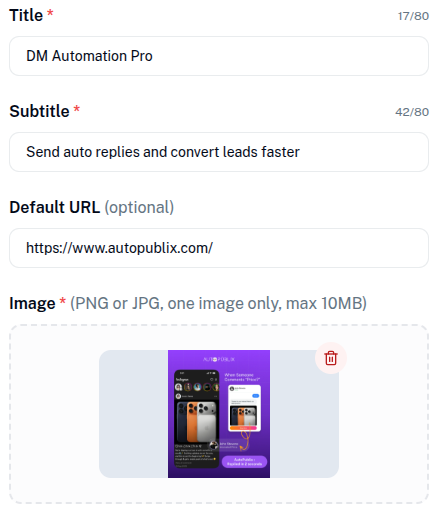
Title
The Title field defines the main name of the product.
This title will appear as the primary heading when the product is shown inside automation messages.
Example:
- DM Automation Pro
- Social Media Automation Kit
Subtitle
The Subtitle provides a short description or tagline that explains the product.
It helps users understand what the product offers when they see it in automation messages.
Example:
- Send auto replies and convert leads faster
- Schedule posts, reels, and stories effortlessly
Default URL
The Default URL is an optional field where you can enter the main link for the product.
This link typically leads to:
- A product landing page
- A sales page
- A website
Product Image
The Image field allows you to upload a visual representation of the product.
The image helps make the product more attractive and easier to recognize when it appears inside automation conversations.
Supported formats:
- PNG
- JPG
Requirements:
- Only one image can be uploaded
- Maximum file size: 10MB
You can upload an image by:
- Dragging and dropping the image into the upload area
- Clicking the upload area to browse and select a file
Actions buttons
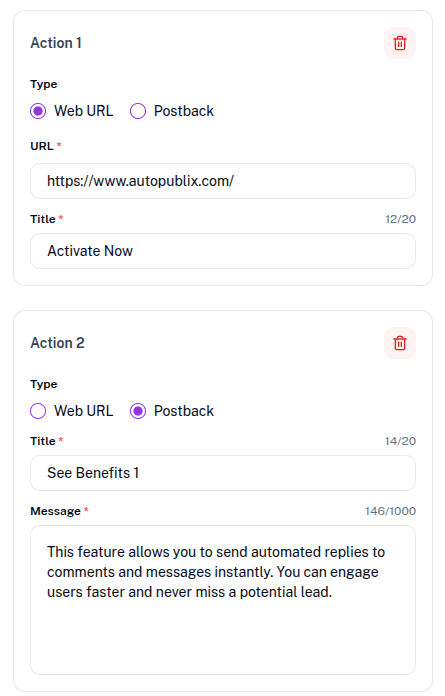
The Actions section allows you to add interactive buttons that users can click when they see the product in automation messages.
These buttons define what happens when a user interacts with the product.
You can add multiple actions using the Add Action button.
Each action can be configured with a specific behavior.
Action Types
Two action types are available:
Web URL
This option opens a website link when the user clicks the action button.
You must provide:
- Title : The label that will appear on the action button.
- URL : The website link that will open when the button is clicked.
Postback
The Postback option triggers an automated message when the button is clicked instead of opening a link.
This is useful when you want the automation to continue the conversation or provide additional information.
Required fields include:
- Title : The button text displayed to the user.
- Message : The message that will be sent automatically when the user clicks the button.
Adding Multiple Actions
You can add more interaction buttons by clicking the Add Action button.
Each product can contain 3 actions that allow users to:
- Open different links
- Request more information
- Continue an automated conversation
Actions can also be removed using the delete icon if they are no longer needed.
Product Status
The Product Status determines whether the product is currently active and available for use in automation flows.
- Draft : The product is saved but remains inactive. It will not trigger until activated.
- Publish Now : The product is published and available for use in automation flows.