

All Products
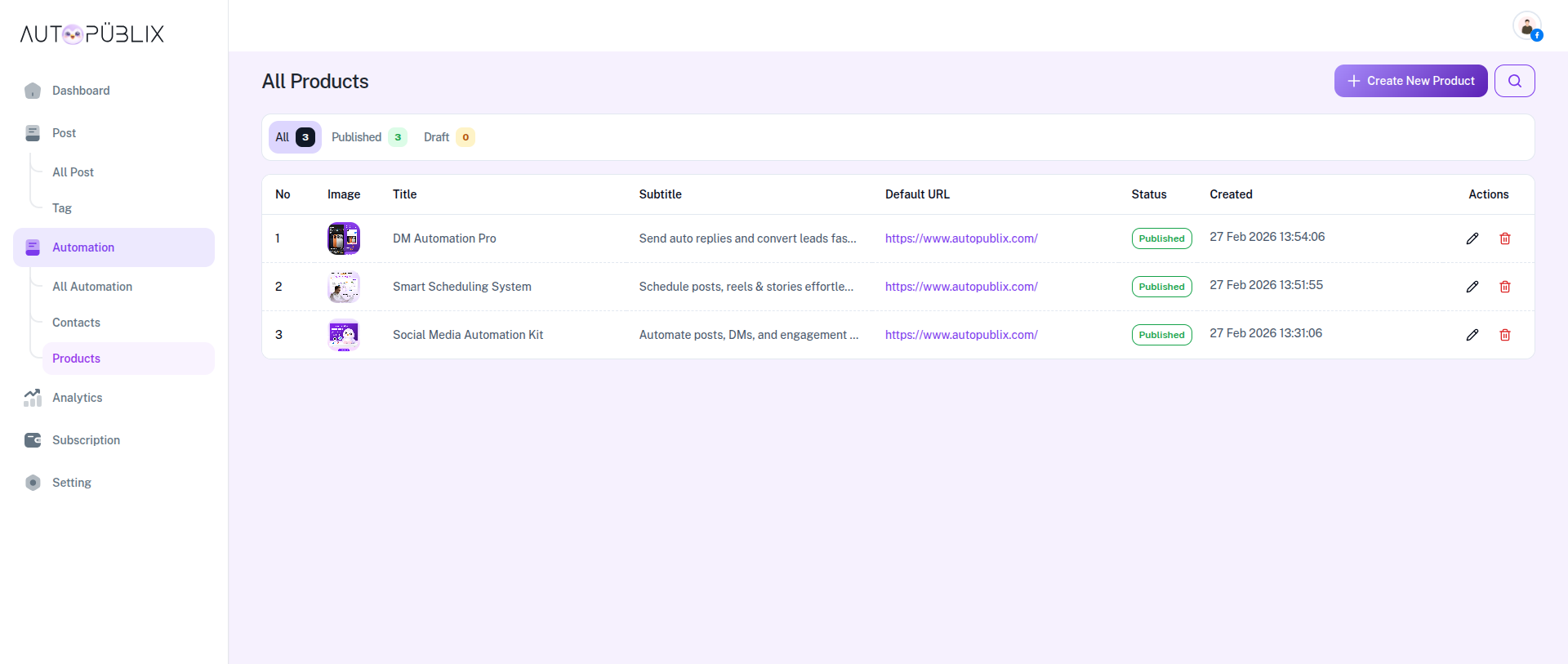
The All Products page allows you to manage all the products that can be shared through your automation workflows. It provides a centralized place where you can create, view, edit, and manage product entries that may be used inside automated conversations, links, or promotional flows.
Products created here can be used to promote services, digital products, tools, or resources within your automation system.
To open this page, navigate to:
Navigation: Dashboard → Automation → ProductsWhat You Can Do on This Page
On this page, you can view and manage all the products created in your account. The product list shows important information such as the product title, description, link, status, and creation date.
This page helps you organize the products you want to promote through automation messages. It also allows you to quickly edit product details, update links, or remove products that are no longer needed.
You can also create new products using the "Create New Product" button located at the top right corner of the page.
Product Filters
At the top of the page, you will see filter options that allow you to quickly view products based on their status.
Available filters include:
- All : Displays all products created in your account.
- Published Products : Shows products that are currently active and available to be used in automations.
- Draft : Displays products that are saved but not yet published.
These filters help you easily manage and review products depending on their current status.
Product List
The main section of the page displays a table containing all created products.
Each product entry includes the following details:
- No : A serial number assigned to each product in the list.
- Image : Thumbnail for the product. Each product uses one image chosen from your Media Library (PNG or JPEG). The same image is used in product lists and when the product appears in automations such as Send Products.
- Title : Shows the name of the product.
- Subtitle : Provides a short description or tagline explaining the product.
- Default URL : The main link associated with the product. This link typically directs users to a product page, website, or landing page.
- Status : Displays the current status of the product.
- Created : Shows the date and time when the product was created.
Actions : Provides options to manage the product.
- Edit : Allows you to modify the product details.
- Delete : Allows you to remove the product from the list.
Create New Product
To add a new product, click the "Create New Product" button located at the top right corner of the page.
This opens the product creation form. You can enter:
- Title and subtitle (shown on product cards in DMs)
- Default URL (optional) — used as a fallback link on the product card
- Image — required. Click the image area to open the media picker. Choose a PNG or JPEG file that is already in your Media Library. Upload new files there first if needed. After you select an image, you can hover the preview and use Change image to pick a different file, or use the remove control to clear the selection.
- Actions — up to three buttons per product (web URL or postback), same as when editing
- Status — Save as draft or Publish now from the publish control
Once saved, the product appears in the All Products list and can be selected in automations such as Send Products.
Search Products
You can use the Search option at the top right of the page to quickly find a specific product.
Simply type the product name or keyword into the search field, and the system will filter the product list to show matching results.
This feature helps you quickly locate products when managing a large catalog.
Manage Products
Each product includes an action menu that allows you to manage the product.
- Edit Product : Update title, subtitle, default URL, image (via Media Library picker), actions, and status. Changing the image uses the same picker as create; the current image is highlighted when you open the dialog to change it.
- Delete Product : Remove the product from the system. You will be asked to confirm before the product is permanently deleted.
Delete Product
To delete a product, click the "Delete" icon in the action menu. You will be asked to confirm before the product is permanently deleted.
Important:
Deleting a product will remove it from the AutopubliX dashboard. If the product is currently used in an automation workflow, you may need to update the automation to remove or replace the product link.
Products should be reviewed regularly to ensure that all links and information remain accurate and up to date.